About Full Screenshot Tool
Safari can only photograph what’s currently on screen — so a long article, a receipt, a chat thread or a design mockup ends up as a stack of half-images you have to paste together yourself. Full Screenshot Tool does that work for you.
Click the toolbar button, press “Capture Full Page”, and watch: the page glides down to the very bottom on its own, photographing one screen at a time — even the parts you’d have to scroll for minutes to see. Every screen is joined edge-to-edge into a single tall image, and sticky headers and floating bars are cleverly hidden after the first screen so nothing repeats down the page.
When it finishes, your screenshot opens in its own tab with a full preview. Check it, give it a name, pick a format, and save. In a hurry? “Capture Visible Area” grabs exactly what’s on screen right now, in one click, with the same export options.
The whole page, top to bottom, in one image — nothing to install beyond your browser. Pay once, $1.99. Done.
Features
It scrolls so you don’t have to
Press “Capture Full Page” and the page glides down to the very bottom on its own, photographing one screen at a time — even the parts you’d have to scroll for minutes to see.
Stitched into one seamless image
Every screen is joined edge-to-edge into a single tall image. Slices line up on the scroll position the page actually reached, so there are no seams and no doubled-up bands.
Sticky headers, handled
Floating navigation bars and cookie banners are hidden from the second screen onward — the header stays where a reader expects it, at the top, and never repeats down the page.
Ready in a new tab
The finished screenshot opens in its own tab with a full preview — check it, name it, pick a format, and save. Nothing to install beyond your browser itself.
Or just the visible area
In a hurry? “Capture Visible Area” grabs exactly what’s on screen right now, in one click, with the same export options.
Three formats, one button
Save as pixel-perfect PNG, as a small shareable JPEG with a quality slider, or as a single-page PDF that opens anywhere.
Name it before you save
The file name starts as the page’s own title, and the editor shows you the exact pixel size of what you captured. Change either before it lands in your Downloads.
Leaves the page as it found it
Smooth scrolling and animations are paused during a capture and restored the moment it’s done — right down to putting your scroll position back where it was.
100% on your Mac
No accounts, no analytics, no ads, no third-party trackers. Screenshots are assembled in memory and go straight to the file you save — they are never uploaded.
How It Works
Enable the extension in Safari
- Open Safari and choose Safari → Settings… → Extensions.
- Tick “Full Screenshot Tool Extension” and allow it on the sites you want to capture.
- That’s it — click the screenshot button in the toolbar whenever you want the whole page.
Taking a screenshot
- Open the page you want and click the Full Screenshot Tool button in the toolbar.
- Press “Capture Full Page” for the whole thing, or “Capture Visible Area” for just what’s on screen.
- Let the page scroll all the way to the bottom — a progress bar shows how far along it is. Stay on the tab until it finishes.
- Your screenshot opens in a new tab. Give it a name, choose PNG, JPEG or PDF, and press Save Screenshot.
Very long feeds that load more content as you scroll are captured up to a generous limit, so an endless timeline won’t keep the capture running forever.
Three Formats, One Button
Every capture — full page or visible area — can be saved three ways from the same editor tab.
Pixel-perfect and lossless. Best for designs, bug reports and anything with fine text.
Small and shareable, with a quality slider from 40 to 100%. Best for long pages you want to email or message.
The whole page as a single-page document that opens anywhere. Best for archiving articles, receipts and records.
Screenshots
A capture button in the toolbar, a page that scrolls itself, and an editor tab where you name the file and pick a format.
macOS 11+
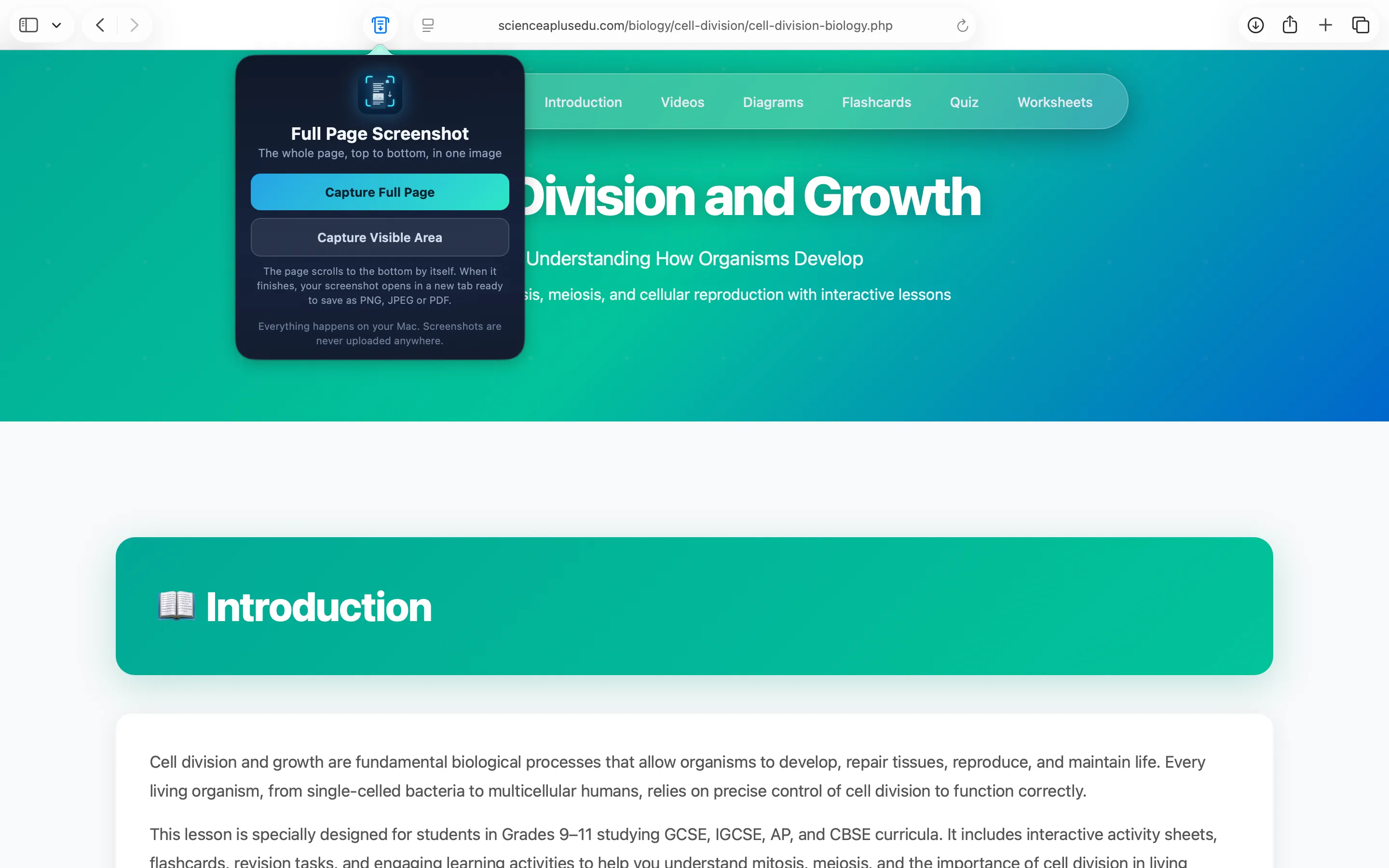
One button in the toolbar: full page, or just what you see
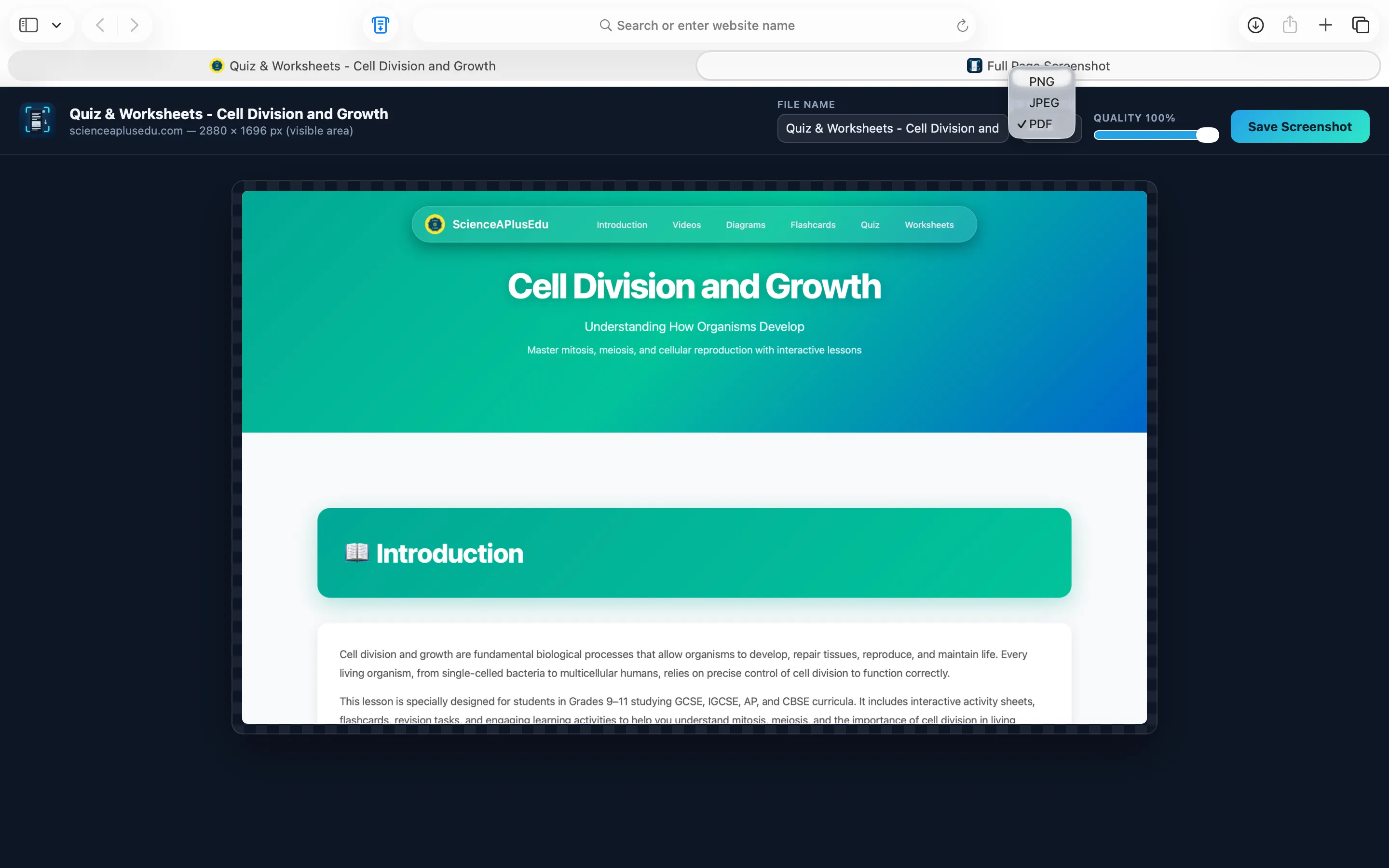
Name it, pick PNG, JPEG or PDF, save it
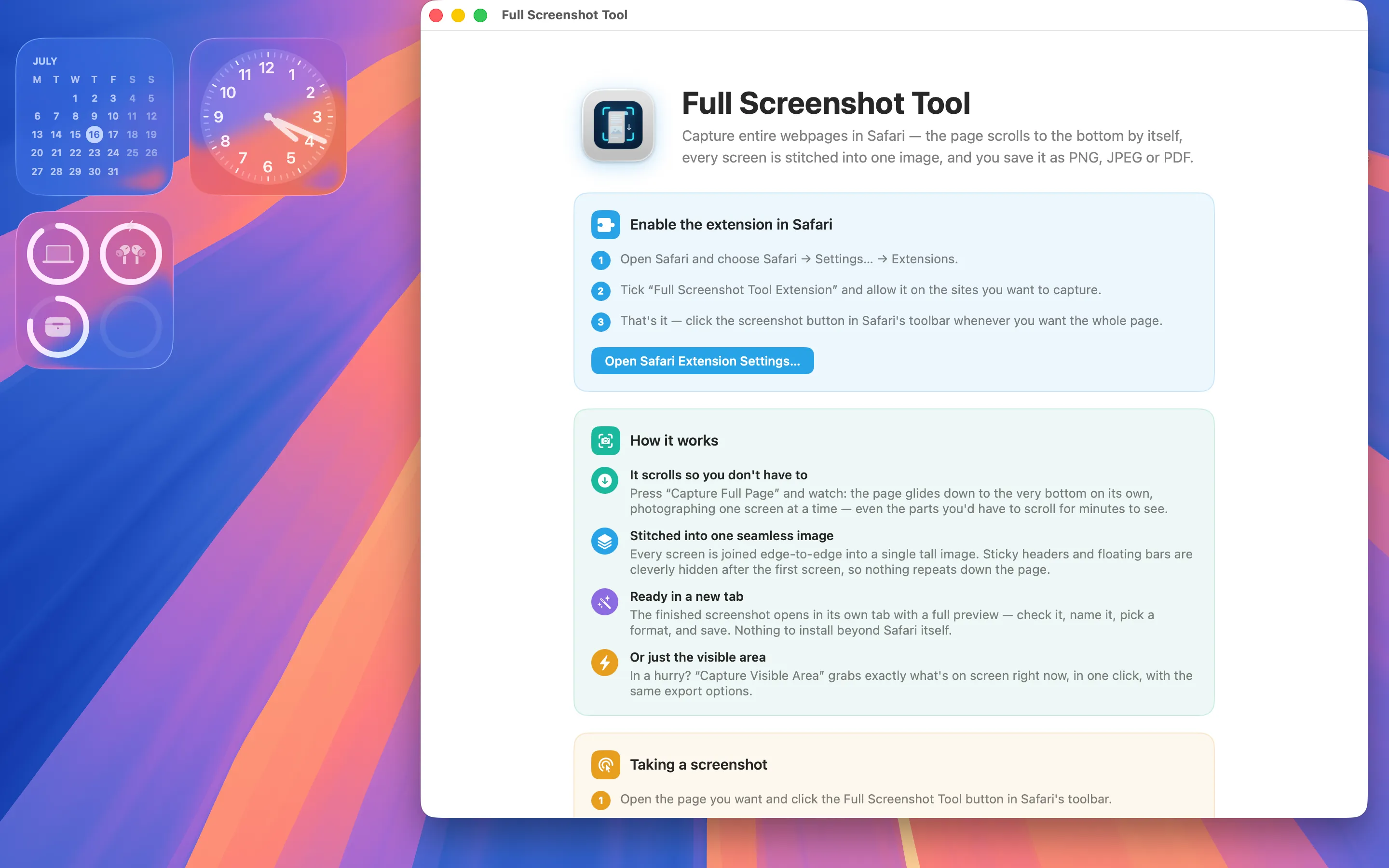
The app walks you through enabling the extension
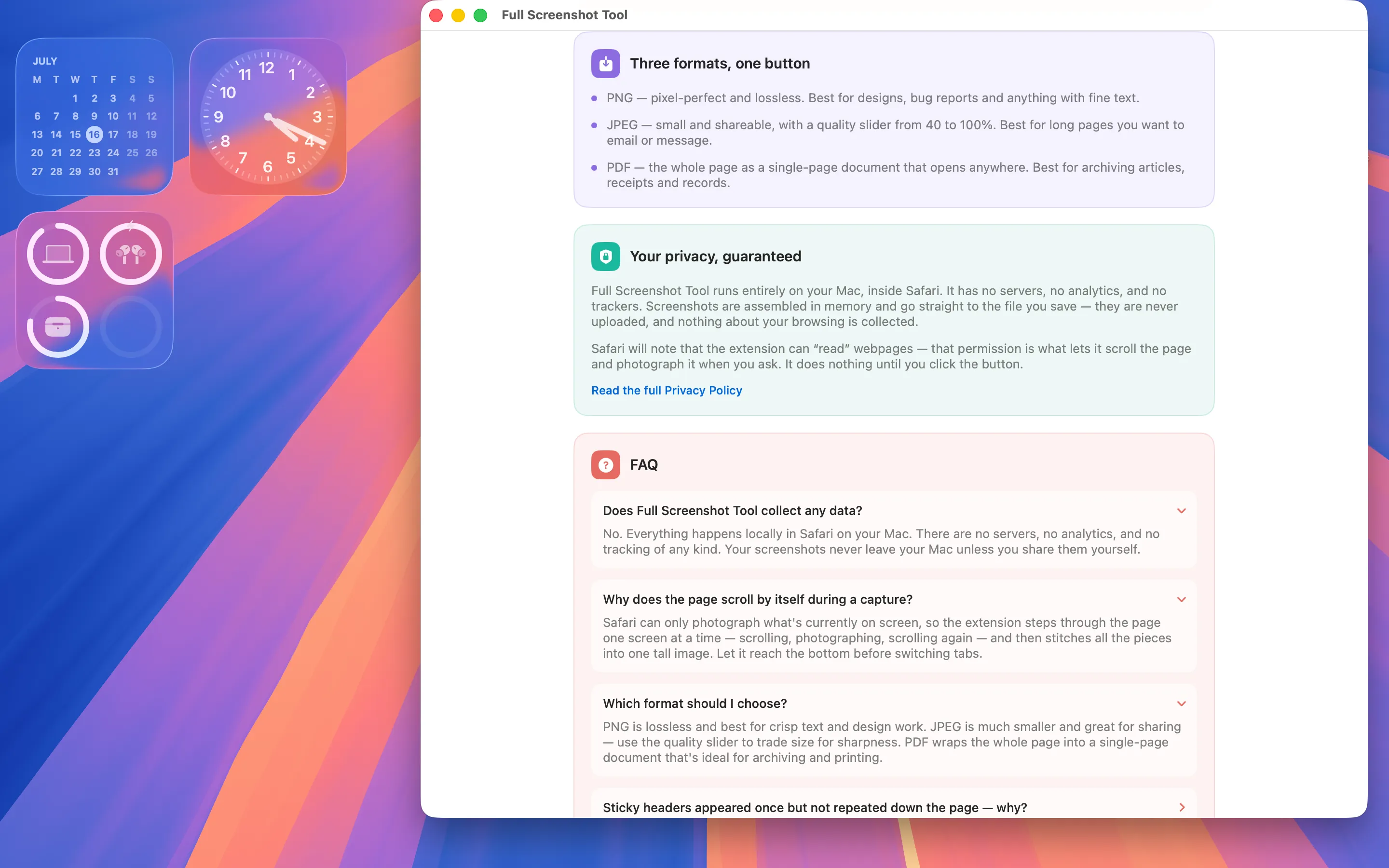
Formats, privacy, and FAQ built into the app
FAQ
Does Full Screenshot Tool collect any data?
No. Everything happens locally in Safari on your Mac. There are no servers, no analytics, and no tracking of any kind. Your screenshots never leave your Mac unless you share them yourself.
Why does the page scroll by itself during a capture?
Safari can only photograph what’s currently on screen, so the extension steps through the page one screen at a time — scrolling, photographing, scrolling again — and then stitches all the pieces into one tall image. Let it reach the bottom before switching tabs.
Which format should I choose?
PNG is lossless and best for crisp text and design work. JPEG is much smaller and great for sharing — use the quality slider to trade size for sharpness. PDF wraps the whole page into a single-page document that’s ideal for archiving and printing.
Sticky headers appeared once but not repeated down the page — why?
That’s deliberate. Floating headers and cookie bars are hidden from the second screen onward, so the header stays at the top where a reader expects it instead of stamping itself across every screen of the capture.
What happens with very long or endlessly scrolling pages?
Pages that keep loading more content as you scroll are captured up to a generous limit, so a capture always finishes. If a stitched image would be enormous, it’s scaled down just enough to save cleanly rather than failing.
Will it change the page I’m capturing?
No. Smooth scrolling, animations and scrollbars are paused for the duration of the capture and restored the moment it’s done — including putting your scroll position back where you left it.
Why does Safari say the extension can read webpages?
That permission is what lets it scroll the page and photograph it when you ask. It does nothing until you click the button, and nothing about your browsing is collected.
The toolbar icon is missing — where is it?
Open Safari → Settings… → Extensions and make sure “Full Screenshot Tool Extension” is ticked. If the button still isn’t visible, right-click Safari’s toolbar, choose Customize Toolbar, and drag it in.
Privacy Policy
Last updated: July 2026
1. Introduction
This Privacy Policy describes how Full Screenshot Tool ("the App," "we," "our," or "us") handles information. The App is a macOS container for a Safari Web Extension that captures screenshots of the webpages you choose.
We respect your privacy. This policy explains exactly what the App does and does not do with information on your device.
2. Information We Collect
We do not collect any personally identifiable information. Full Screenshot Tool does not require an account, does not ask for your name or email, and does not transmit any data to servers operated by us — we don’t run any.
- No sign-in, account, or registration.
- No analytics or crash reporting SDKs.
- No advertising SDKs of any kind.
- No tracking, no fingerprinting, no third-party SDKs at all.
- No location, contacts, microphone, or camera access.
- Your captures are held in memory only long enough to preview and save them, and are discarded when you close the tab.
3. Your Screenshots Stay on Your Mac
Everything Full Screenshot Tool does happens on your Mac, inside Safari. The App makes no network requests, performs no server uploads, and contacts no third-party services. There is no telemetry and no auto-update beacon. Screenshots are assembled in memory and written straight to the file you choose to save — they are never uploaded, and nothing about your browsing is collected.
4. Extension Permissions
The Safari extension requests permission to access webpage contents solely so it can scroll the page and photograph it when you press the capture button. This happens only on the tab you are looking at, only when you ask, and only for as long as the capture takes. The extension does not read your browsing history, and it does not record, collect, or transmit the contents of the pages you visit.
5. App Store Purchase
Full Screenshot Tool is a paid app sold through the Mac App Store. The purchase is processed entirely by Apple. We do not see your payment details. There are no in-app purchases, no subscriptions, and no recurring charges.
6. Data Sharing
We do not sell, rent, or share user data — we don’t have any to share. There are no third-party SDKs in Full Screenshot Tool.
7. Children’s Privacy
The App is suitable for users of all ages and is not directed at children under 13. We do not knowingly collect personal information from children.
8. Changes to This Privacy Policy
We may update this Privacy Policy periodically. Any updates will be reflected on this page with a new "Last Updated" date.
9. Contact Us
If you have any questions or concerns about this Privacy Policy, please contact:
Terms of Use
Full Screenshot Tool is provided as a utility that captures screenshots of the webpages you view in Safari. Captures are assembled on your own Mac; the App does not analyse, collect, or transmit the contents of the pages you visit. You are responsible for how you use the images you create — including respecting the copyright, terms and privacy of the sites you capture. By installing the App you agree to Apple’s standard Licensed Application End User License Agreement, which governs all App Store apps.
Full Screenshot Tool is a one-time paid app sold through the Mac App Store and tied to your Apple ID. There are no subscriptions and no in-app purchases. Refund requests are handled by Apple under their standard refund policy.
Support
Questions, bug reports, or feature requests? Drop us a line.