About Tab to QR
Tab to QR is a small Safari Web Extension for Mac with one job: send the page you're looking at to your phone without typing a link, pairing with AirDrop, or signing in to anything.
Click the QR icon in Safari's toolbar and the current tab's address turns into a QR code on the spot. Point any iPhone or Android camera at it and the page opens in seconds. From the same popup you can Share the code through the standard macOS share sheet, Copy Image to paste it anywhere, Save Image as a print-ready PNG, or Copy Link to grab the plain URL.
One-time purchase. No ads, no analytics, no accounts, and no server involved — the QR code is generated locally on your Mac every time.
Enable the extension once, then click the toolbar icon on any page. Pay once, $1.99. Done.
Features
Instant Tab-to-QR
Click the toolbar icon and the active tab's link becomes a QR code immediately — no dialogs, no waiting.
Scan With Any Phone
Point an iPhone or Android camera at the screen to open the page instantly, with no app to install.
Share, Copy, or Save
Share the QR image with macOS's share sheet, copy it to paste into documents and chats, or save a sharp PNG.
Copy Link
Need the plain URL instead? Copy Link grabs the page address with a single click.
Auto-Sized Codes
Long links are handled automatically — Tab to QR picks the right size and error-correction level so codes stay scannable.
Keyboard Shortcut
Assign a shortcut in Safari's Extensions settings to show the QR code for the current page without touching the toolbar.
Plain-English QR Guide
Built-in explanations of how QR codes work, how much they can hold, and why scanning is so fast.
100% On-Device
No accounts, no analytics, no ads, no third-party trackers. The extension only sees the active tab when you click its icon.
How It Works
Enable the extension in Safari
- Open Safari and choose Safari → Settings… → Extensions.
- Tick “Tab to QR Extension”.
- Click the QR icon in Safari's toolbar on any page.
From there
- Click the QR icon and the current page's link instantly becomes a QR code.
- Point your iPhone or Android camera at the screen to open the page on your phone — no typing, no AirDrop pairing, no signing in.
- Use Share to send the QR code image with the standard macOS share sheet, Copy Image to paste it anywhere, or Save Image to keep a PNG.
- Everything happens on your Mac. The link is never sent to any server.
Screenshots
Enable the extension once, then click the toolbar icon on any page to get a scannable, shareable QR code.
macOS 11+
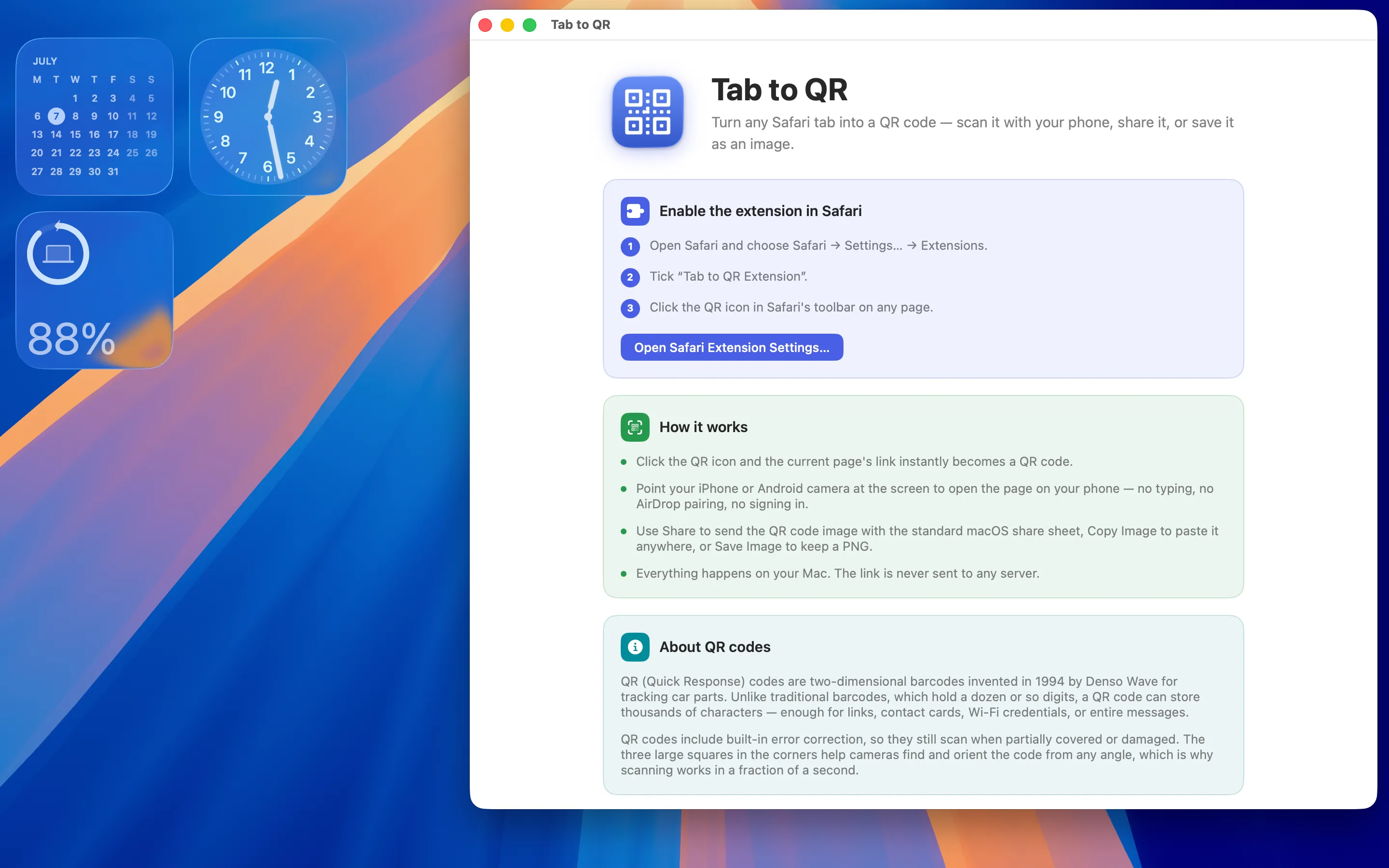
Enable the extension and see how it works
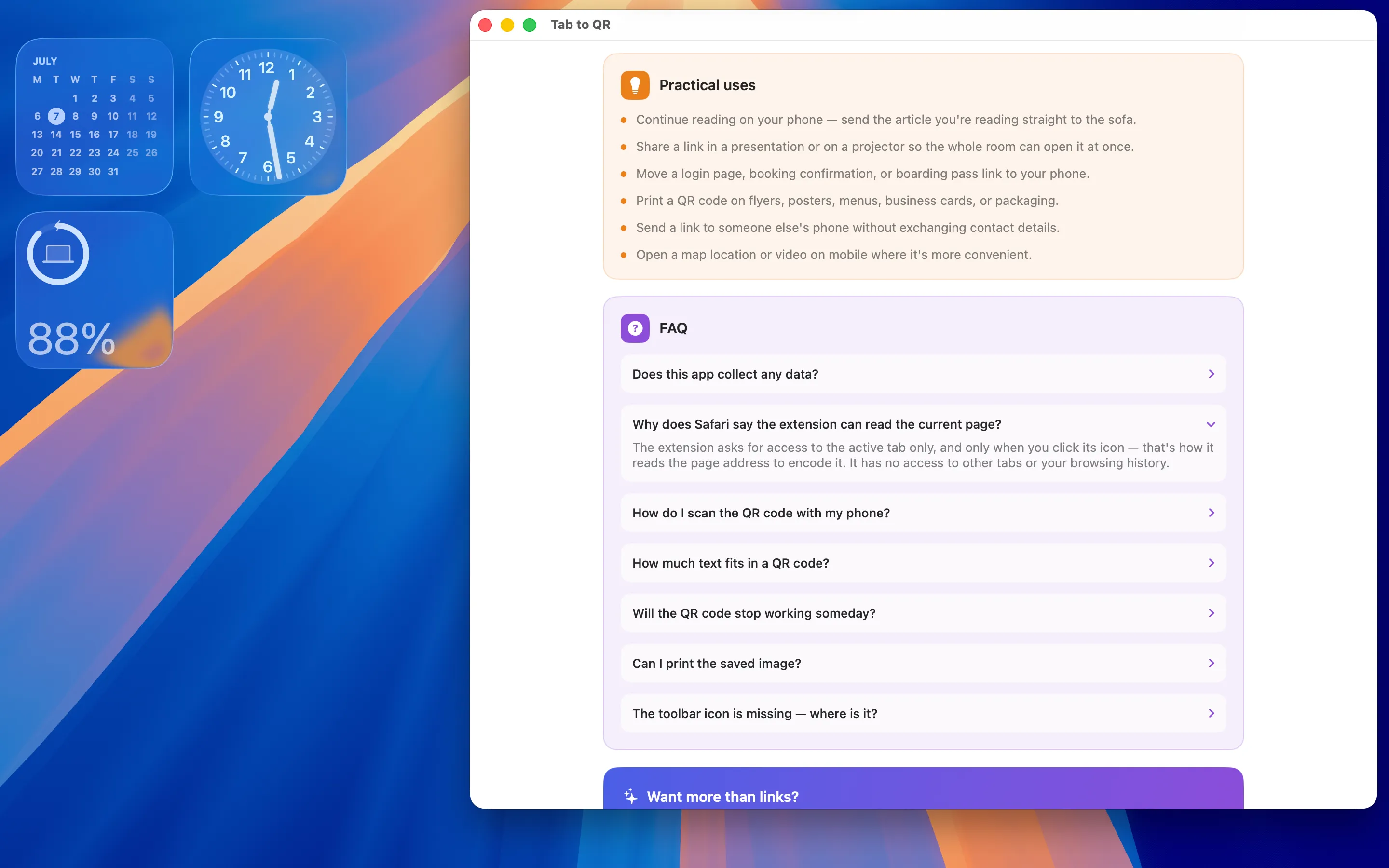
Practical uses and answers to common questions
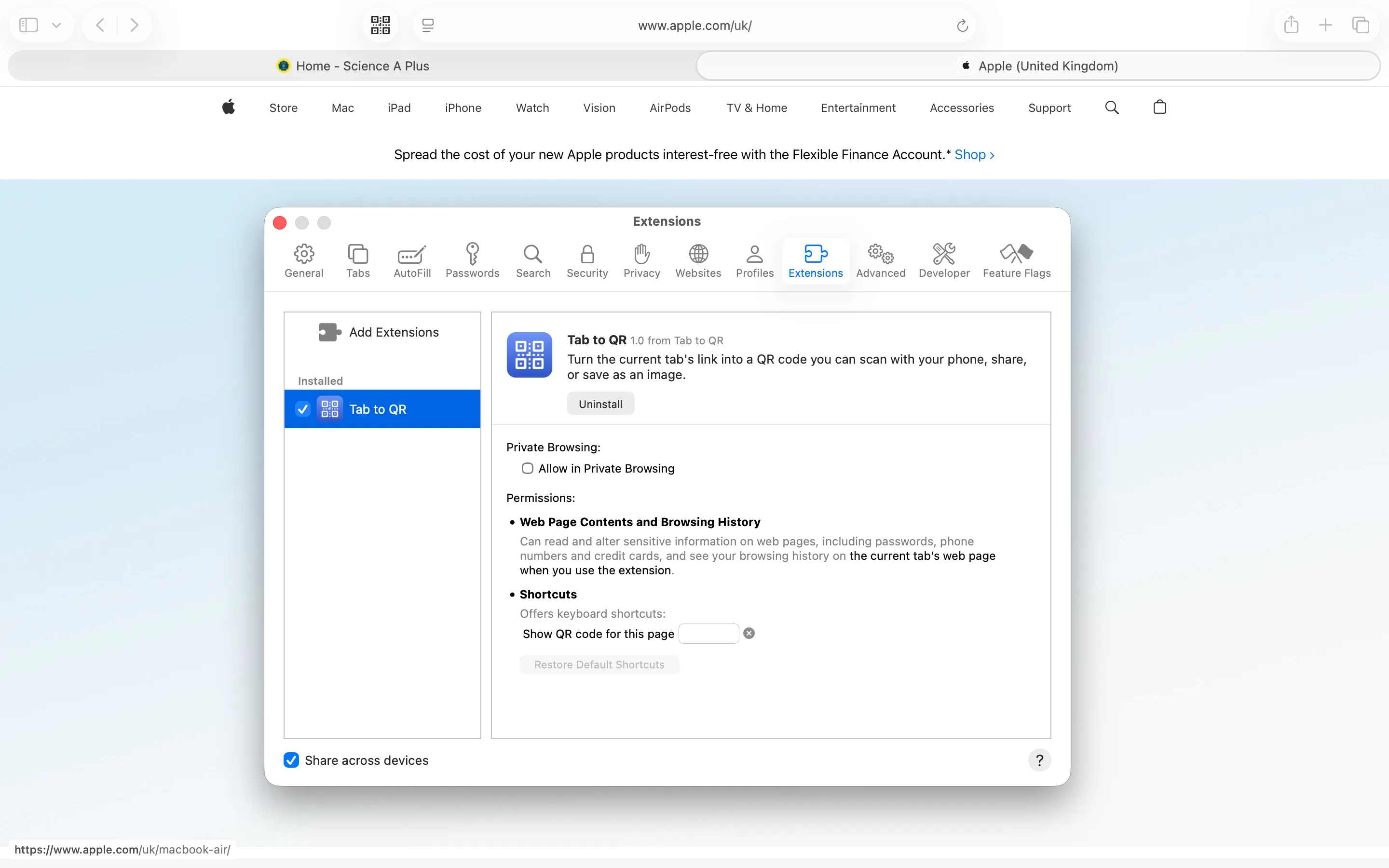
Enable in Safari → Settings → Extensions
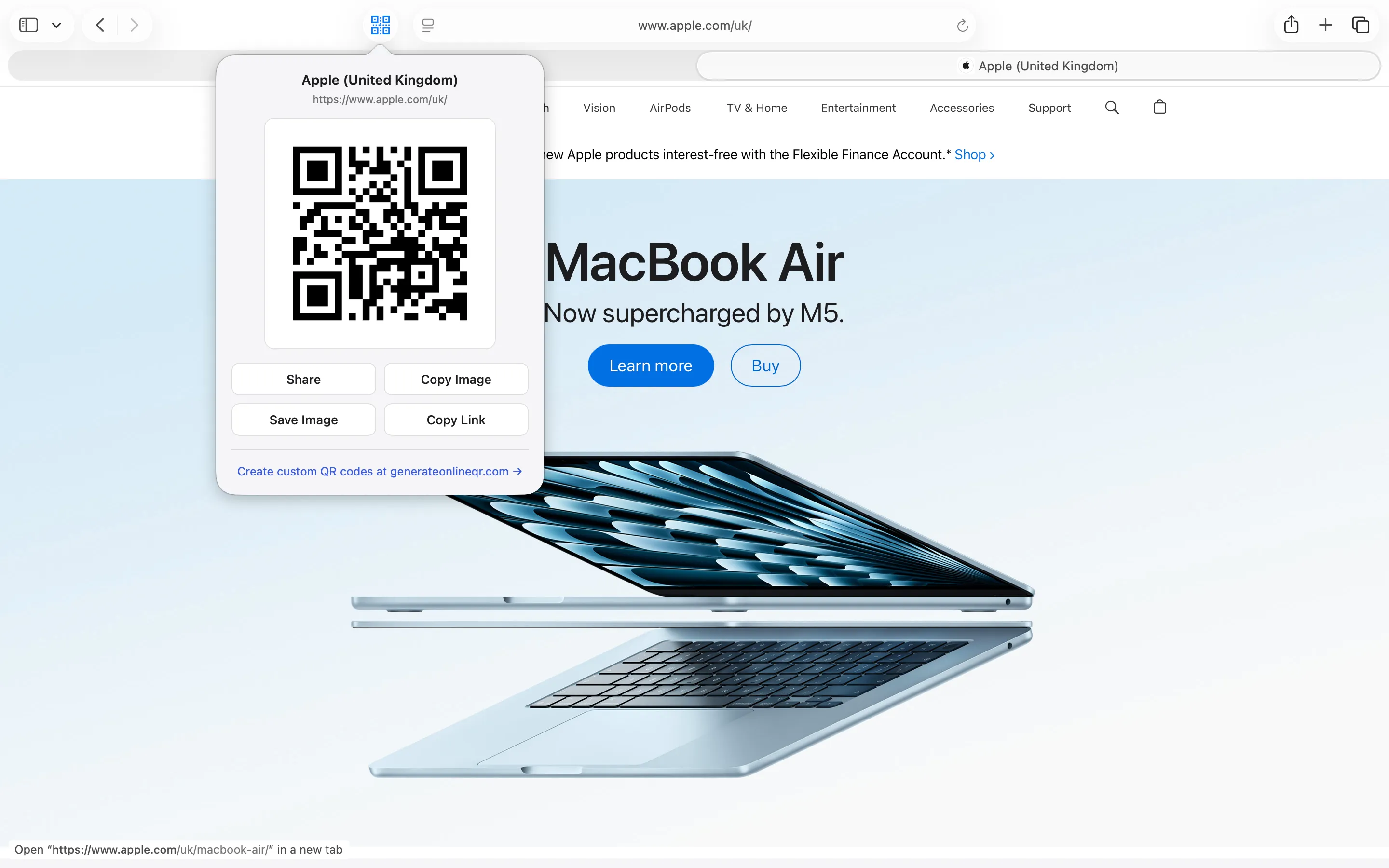
One click turns the tab into a QR code
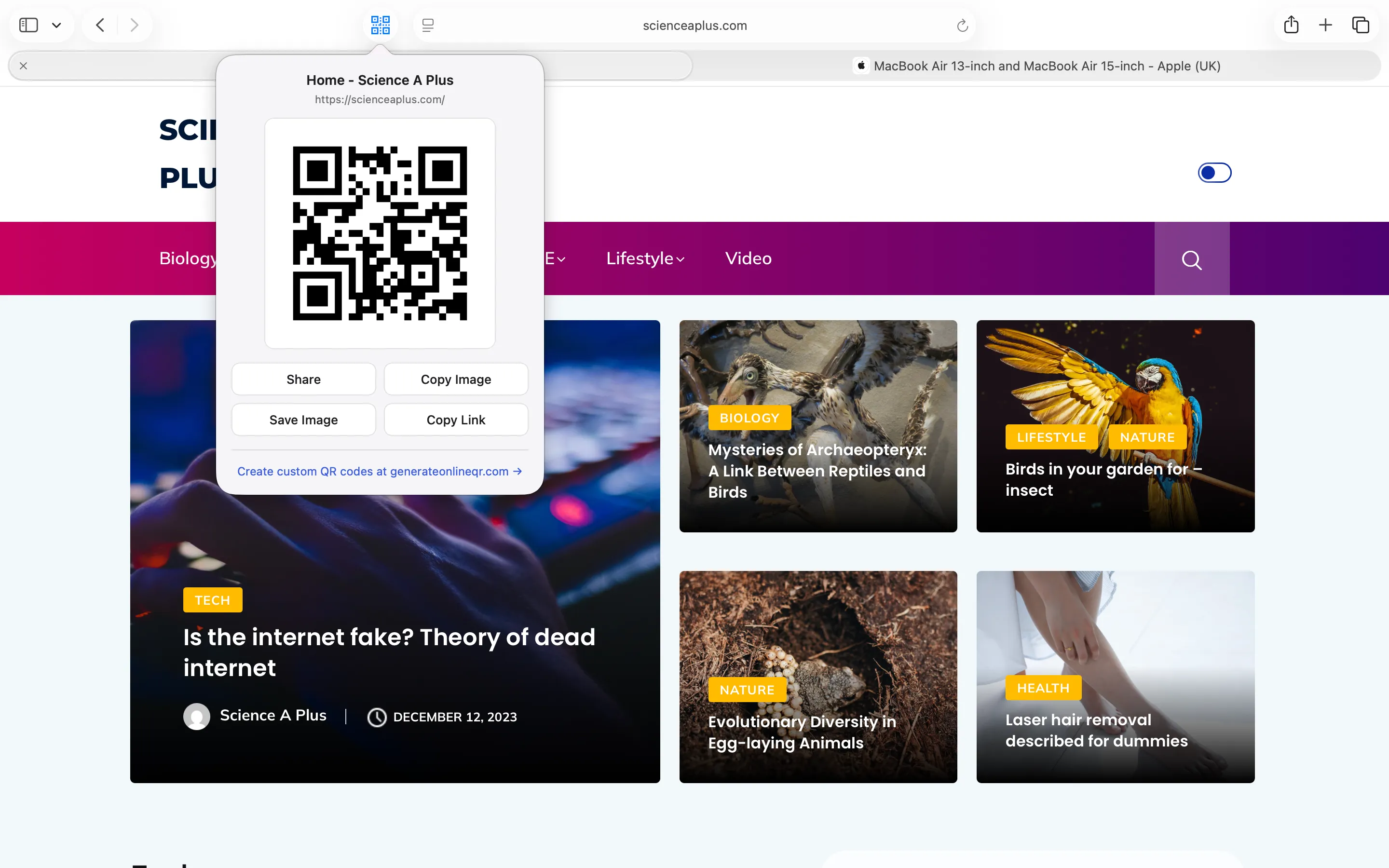
Works on any site, in any tab
FAQ
Does this app collect any data?
No. Tab to QR does not collect, store, or transmit any data. There are no accounts, no analytics, and no third-party trackers.
Why does Safari say the extension can read the current page?
The extension asks for access to the active tab only, and only when you click its icon — that's how it reads the page address to encode it. It has no access to other tabs or your browsing history.
How do I scan the QR code with my phone?
Open your phone's camera app (or any QR scanner) and point it at the code on screen. Tap the notification that appears to open the page.
How much text fits in a QR code?
A QR code can store thousands of characters, far more than any web address needs. Tab to QR automatically picks the right size and error-correction level for the link.
Will the QR code stop working someday?
No. The code encodes the page's URL directly, so it works for as long as that page exists — there's no expiry built into the QR code itself.
Can I print the saved image?
Yes. Save Image keeps a sharp, print-ready PNG with proper scanning margin, ready for flyers, posters, menus, or business cards.
The toolbar icon is missing — where is it?
Open Safari → Settings… → Extensions and make sure “Tab to QR Extension” is ticked. You can also pin it to the toolbar from the same screen.
Privacy Policy
Last updated: July 2026
1. Introduction
This Privacy Policy describes how Tab to QR ("the App," "we," "our," or "us") handles information. The App is a macOS container for a Safari Web Extension that turns the current browser tab into a QR code.
We respect your privacy. This policy explains exactly what the App does and does not do with information on your device.
2. Information We Collect
We do not collect any personally identifiable information. Tab to QR does not require an account, does not ask for your name or email, and does not transmit any data to servers operated by us — we don’t run any.
- No sign-in, account, or registration.
- No analytics or crash reporting SDKs.
- No advertising SDKs of any kind.
- No tracking, no fingerprinting, no third-party SDKs at all.
- No location, contacts, microphone, or camera access.
- The extension only sees the active tab's address when you click its icon, and only to generate the QR code locally.
3. Your Links Stay on Your Mac
The QR code is generated entirely on your Mac. The App makes no network requests, performs no server uploads, and contacts no third-party services. There is no telemetry and no auto-update beacon. Your browsing and links never leave your Mac.
4. Extension Permissions
The Safari extension requests access to the active tab only, and only at the moment you click its toolbar icon. It cannot see other open tabs, your browsing history, or the contents of pages you have not explicitly activated it on.
5. App Store Purchase
Tab to QR is a paid app sold through the Mac App Store. The purchase is processed entirely by Apple. We do not see your payment details. There are no in-app purchases, no subscriptions, and no recurring charges.
6. Data Sharing
We do not sell, rent, or share user data — we don’t have any to share. There are no third-party SDKs in Tab to QR.
7. Children’s Privacy
The App is suitable for users of all ages and is not directed at children under 13. We do not knowingly collect personal information from children.
8. Changes to This Privacy Policy
We may update this Privacy Policy periodically. Any updates will be reflected on this page with a new "Last Updated" date.
9. Contact Us
If you have any questions or concerns about this Privacy Policy, please contact:
Terms of Use
Tab to QR is provided as a utility for turning Safari tab links into QR codes. The App encodes the page address you're viewing; it does not analyse, scan, or transmit the page's contents. By installing the App you agree to Apple’s standard Licensed Application End User License Agreement, which governs all App Store apps.
Tab to QR is a one-time paid app sold through the Mac App Store and tied to your Apple ID. There are no subscriptions and no in-app purchases. Refund requests are handled by Apple under their standard refund policy.
Support
Questions, bug reports, or feature requests? Drop us a line.