
About Pastel Highlighter
Pastel Highlighter is a small Safari Web Extension for Mac that turns any webpage into something you can mark up — just like a highlighter pen on a printed page. Select some text and a little palette of five soft pastels pops up right where you are: lemon, rose, mint, sky, and lilac. Click a colour and the highlight sticks.
The magic is that your highlights stay put. Every mark is saved for that exact page, on your Mac. Close the tab, restart Safari, come back next week — Pastel Highlighter finds the same passage again and paints it right back in, in the same colour. Click a highlight to recolour it or remove it whenever you change your mind.
From the toolbar you get a tidy list of every highlight on the page: filter by colour, copy them to the clipboard grouped by colour, or export the whole page as a PDF with all the pastels baked in — perfect for study notes, research, and reading lists. Everything happens on your Mac. No accounts, no ads, no analytics, no servers.
Enable the extension once, then select any text on any page and pick a pastel. Pay once, $1.99. Done.
Features
Select, then tint
Drag across any text and a floating palette of five pastels appears right above it. One click and the highlight is down — just like a marker on paper.
Five gentle pastels
Lemon, rose, mint, sky, and lilac — soft enough to read straight through, distinct enough to colour-code by topic, importance, or whatever you like.
Highlights that stay
Every highlight is remembered for that page. Close the tab, restart Safari, return next week — the same passage is found and painted back in automatically.
Change your mind
Click an existing highlight to bring the palette back — pick a new pastel to recolour it, or press × to remove it. The page underneath is never altered.
Every highlight, one click away
The toolbar popup lists every highlight on the page. Click one to jump straight to it with a gentle flash. Filter the list by colour with the pastel dots.
Copy your highlights
Put the whole set on your clipboard — grouped under colour headings — or filter to one pastel and copy just those. Great for pulling quotes into your notes.
Pin it to the page
Pop the highlight list out into a floating, draggable panel that stays open while you read. It’s grouped by colour and updates the instant you make a new mark.
Print-perfect PDFs
Export the whole page — highlights included, in full colour — straight to PDF. Perfect for study packs, research, and reading lists you want to keep.
100% on-device
No accounts, no analytics, no ads, no third-party trackers. Your highlights are stored only on your Mac and never leave it.
How It Works
Enable the extension in Safari
- Open Safari and choose Safari → Settings… → Extensions.
- Tick “Pastel Highlighter” and allow it on the sites you want to highlight.
- Select any text on a page — the pastel palette appears right above it.
From there
- Drag across text, then click a pastel in the little pop-up palette to lay down a highlight.
- Click any existing highlight to recolour it with a different pastel, or press × to remove it.
- Open the toolbar popup to see every highlight on the page, jump to one, filter by colour, or copy them out.
- Turn on “Pin to page” to keep a floating, draggable list of your highlights beside you while you read.
- Press “Export page as PDF…” to save the page — pastels and all — using Safari’s print dialog (
Save as PDF). - Everything is stored on your Mac. Nothing you highlight is ever sent anywhere.
Screenshots
Highlight straight on the page, manage everything from the toolbar, or pin the list beside you — and take it all with you as a PDF.
macOS 11+
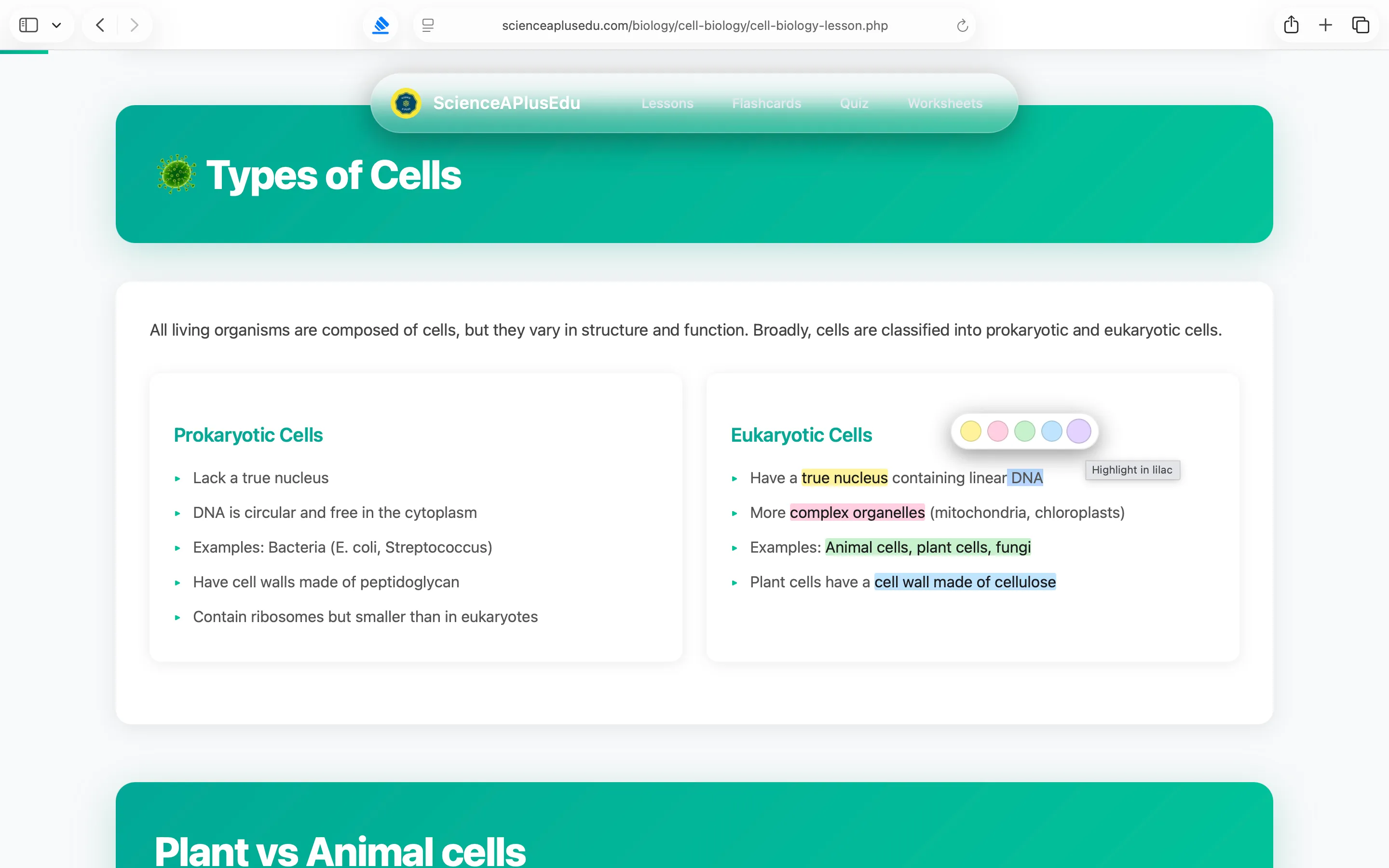
Select text — the pastel palette appears right where you are
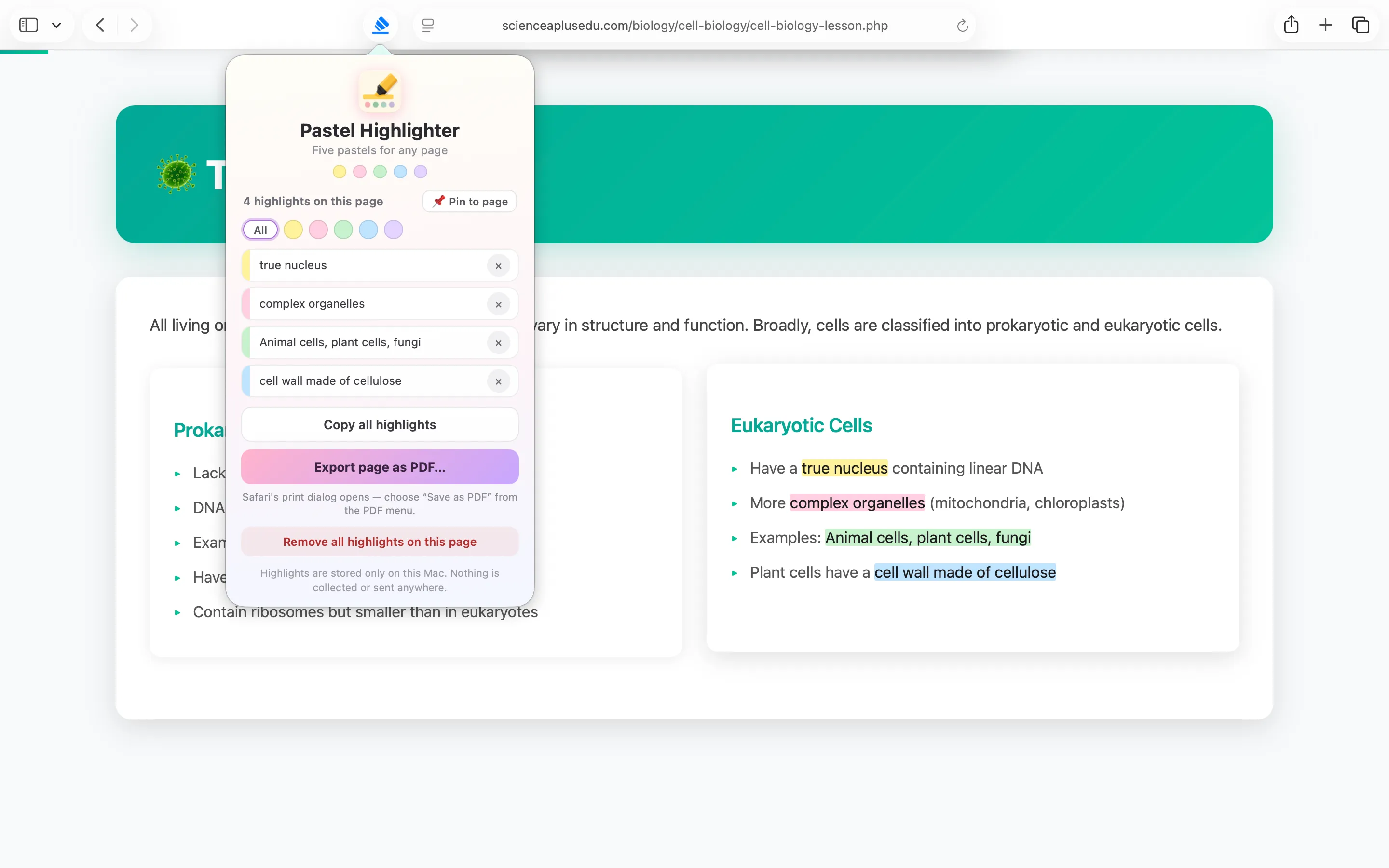
The toolbar popup — filter, copy, pin, and export
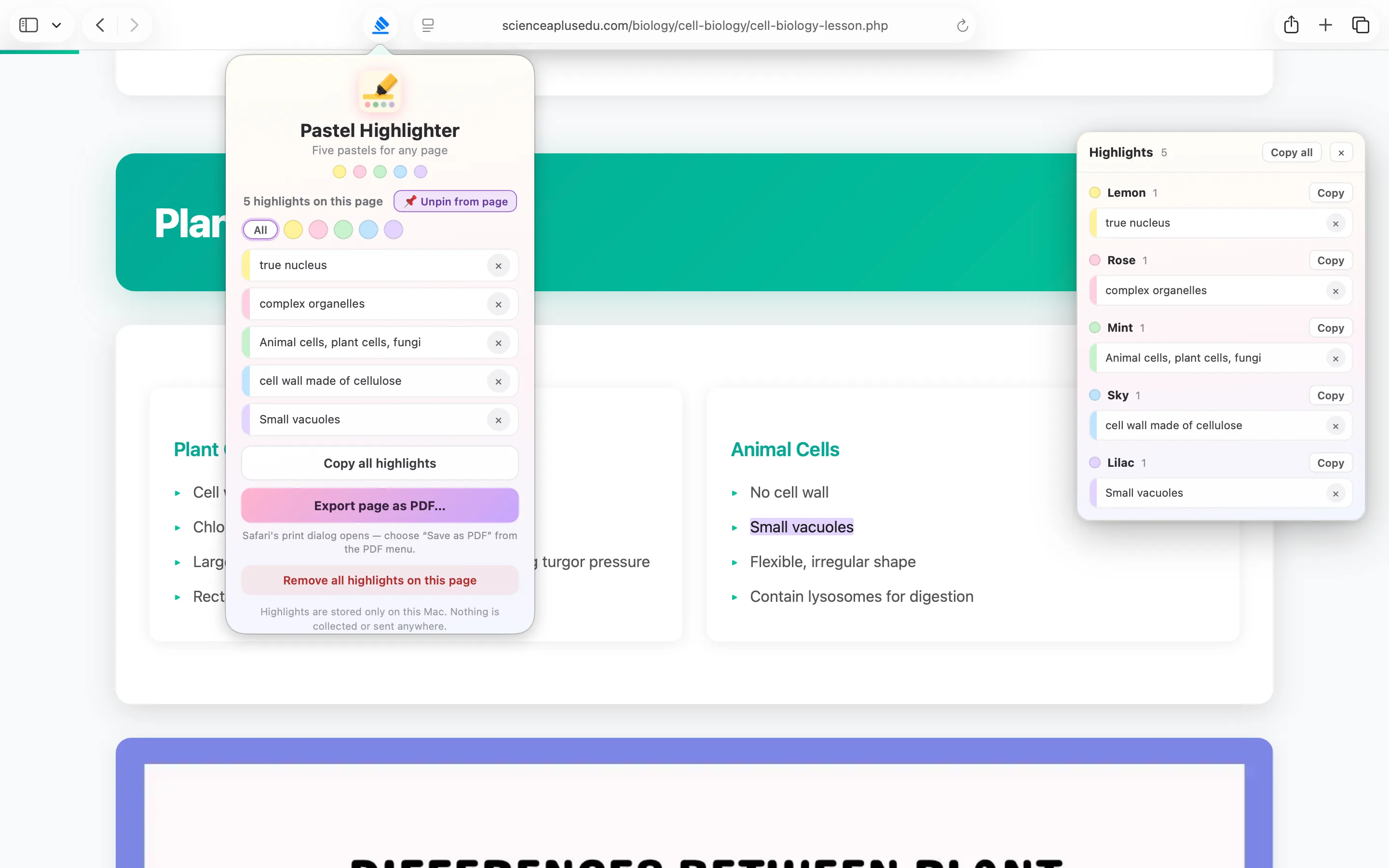
Pin the list to the page — grouped by colour, updating live
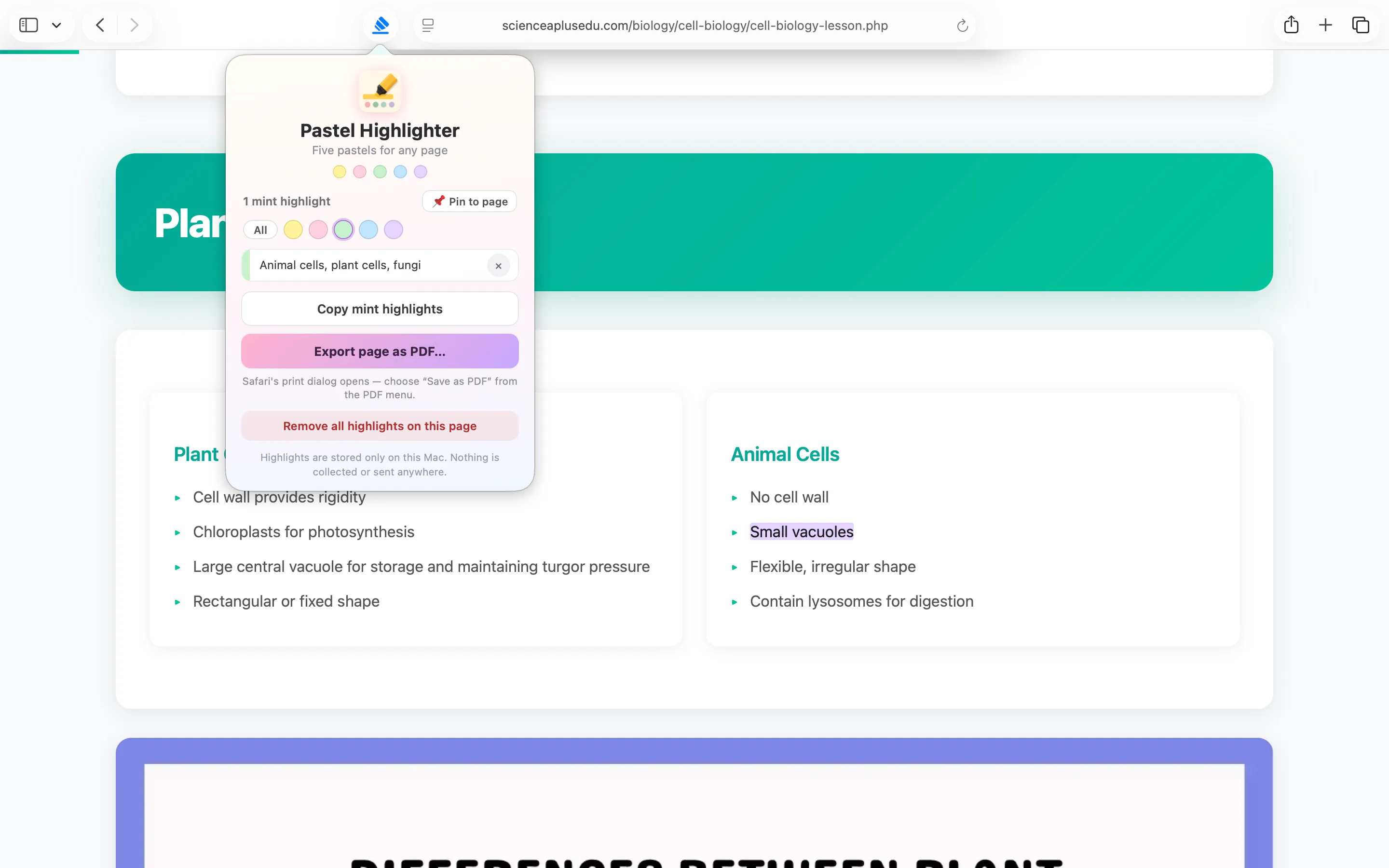
Filter by one pastel and copy just those highlights
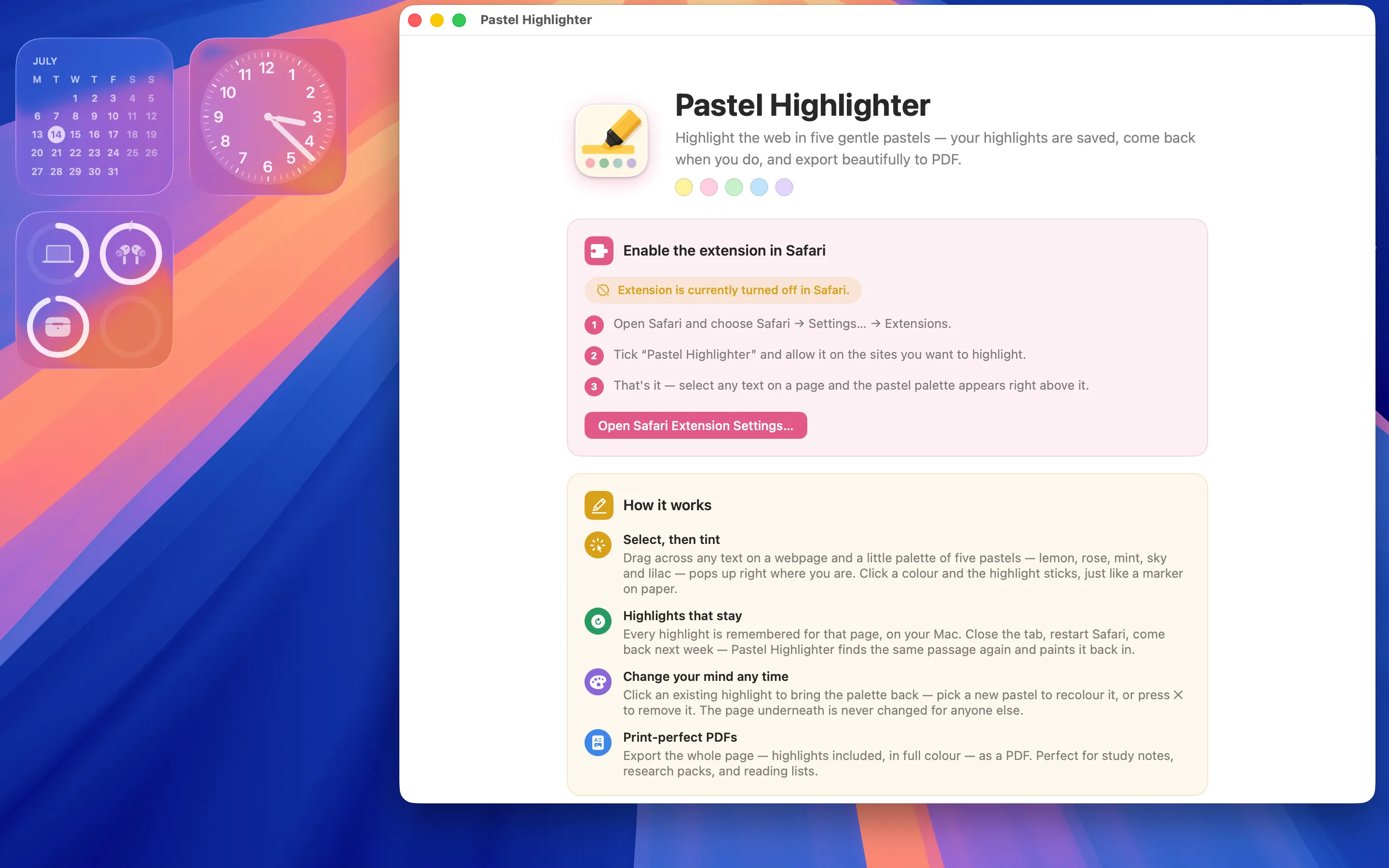
The app walks you through enabling the extension
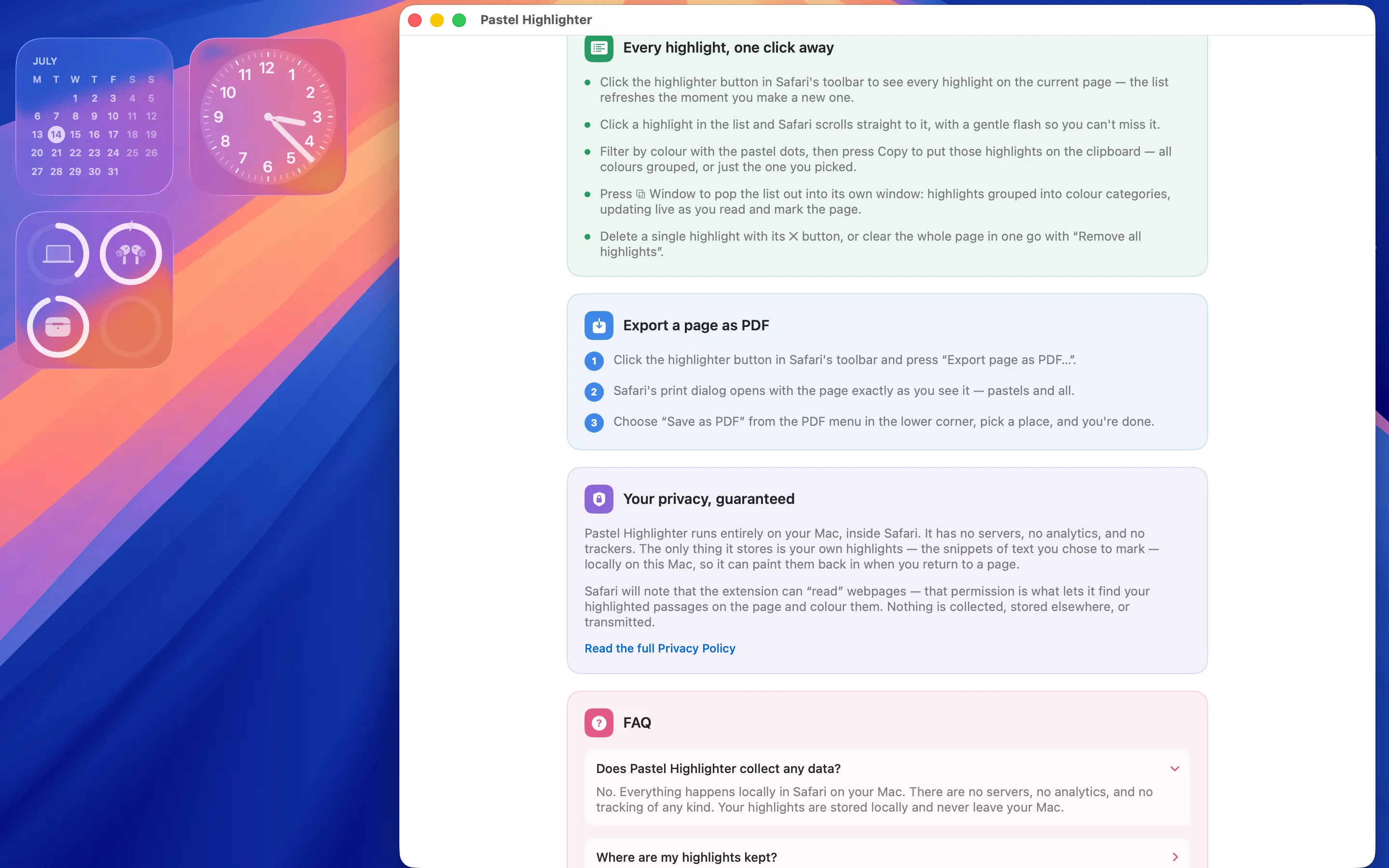
Export steps, privacy, and FAQ built into the app
Why Highlight the Web?
So much of what we read now lives in the browser — lessons and articles, documentation, recipes, research, long reading lists. On paper you’d reach for a highlighter without a second thought; on the web that instinct usually has nowhere to go, and the good bits scroll away and get lost.
Pastel Highlighter gives you that pen back. Mark the sentence that matters, colour-code by topic, and trust that it will still be there when you return — because it’s saved for that page on your Mac. When you’re ready, copy your highlights into your notes or save the whole page as a PDF. It’s a calmer way to read closely, and none of your highlights ever leave your computer.
FAQ
Does Pastel Highlighter collect any data?
No. Everything happens locally in Safari on your Mac. There are no servers, no analytics, and no tracking of any kind. Your highlights are stored on your Mac and never leave it.
Where are my highlights kept?
They’re saved in the extension’s local storage on your Mac, keyed to each page’s address. Pastel Highlighter stores just the snippet of text you marked and its colour, so it can find the same passage and paint it back in when you return.
Why does Safari say the extension can read webpages?
That permission is what lets Pastel Highlighter find your highlighted passages on the page and colour them — and draw the palette and the optional floating panel. It doesn’t collect, store elsewhere, or transmit anything from the pages you visit.
What are the five colours?
Lemon, rose, mint, sky, and lilac — five soft pastels chosen to sit lightly over text so it stays readable, while still being easy to tell apart at a glance.
A highlight didn’t come back when I revisited a page.
Pastel Highlighter re-finds each passage by its surrounding text. If the page’s wording changed a lot since you highlighted it — a live news feed, for example — the original passage may no longer exist to paint back in. Stable articles and lessons restore reliably.
Does highlighting change the website for anyone else?
No. Highlights are drawn only in your copy of the page, on your Mac. The website itself is never modified, and nobody else can see your marks.
How do I export a page as a PDF?
Open the toolbar popup and press “Export page as PDF…”. Safari’s print dialog opens with the page exactly as you see it — pastels and all — then choose Save as PDF from the PDF menu in the lower corner.
The toolbar icon is missing — where is it?
Open Safari → Settings… → Extensions and make sure “Pastel Highlighter” is ticked. If the icon still isn’t visible, right-click Safari’s toolbar, choose Customize Toolbar, and drag the highlighter icon in.
Privacy Policy
Last updated: July 2026
1. Introduction
This Privacy Policy describes how Pastel Highlighter ("the App," "we," "our," or "us") handles information. The App is a macOS container for a Safari Web Extension that lets you highlight text on webpages in five pastel colours, with an optional floating panel that lists your highlights.
We respect your privacy. This policy explains exactly what the App does and does not do with information on your device.
2. Information We Collect
We do not collect any personally identifiable information. Pastel Highlighter does not require an account, does not ask for your name or email, and does not transmit any data to servers operated by us — we don’t run any.
- No sign-in, account, or registration.
- No analytics or crash reporting SDKs.
- No advertising SDKs of any kind.
- No tracking, no fingerprinting, no third-party SDKs at all.
- No location, contacts, microphone, or camera access.
- Your highlights — the snippets of text you chose to mark and their colours — are stored locally on your Mac so they can be restored when you return to a page.
3. Your Highlights Stay on Your Mac
Everything Pastel Highlighter does happens on your Mac, inside Safari. The App makes no network requests, performs no server uploads, and contacts no third-party services. There is no telemetry and no auto-update beacon. Your highlights and preferences never leave your Mac.
4. Extension Permissions
The Safari extension requests permission to access webpage contents solely so it can find the passages you highlighted and draw your highlights, the pastel palette, and the optional floating panel on top of the page. Your highlights and preferences are stored locally using Safari’s extension storage. The extension does not read your browsing history, and it does not record, collect, or transmit the contents of the pages you visit.
5. App Store Purchase
Pastel Highlighter is a paid app sold through the Mac App Store. The purchase is processed entirely by Apple. We do not see your payment details. There are no in-app purchases, no subscriptions, and no recurring charges.
6. Data Sharing
We do not sell, rent, or share user data — we don’t have any to share. There are no third-party SDKs in Pastel Highlighter.
7. Children’s Privacy
The App is suitable for users of all ages and is not directed at children under 13. We do not knowingly collect personal information from children.
8. Changes to This Privacy Policy
We may update this Privacy Policy periodically. Any updates will be reflected on this page with a new "Last Updated" date.
9. Contact Us
If you have any questions or concerns about this Privacy Policy, please contact:
Terms of Use
Pastel Highlighter is provided as a utility for highlighting and marking up text while you read in Safari. The App draws your highlights, the palette, and an optional panel on the page; it does not analyse, scan, collect, or transmit the page’s contents. By installing the App you agree to Apple’s standard Licensed Application End User License Agreement, which governs all App Store apps.
Pastel Highlighter is a one-time paid app sold through the Mac App Store and tied to your Apple ID. There are no subscriptions and no in-app purchases. Refund requests are handled by Apple under their standard refund policy.
Support
Questions, bug reports, or feature requests? Drop us a line.