Small Mac Utilities, Big Wins: Battery Stats, Sticky Notes & Colour-Coded Notes
Your Mac's menu bar can do more than show the clock and Wi-Fi icon. I've built a handful of small utilities for it — the kind of thing people search for as a mac battery monitor sticky notes app — because I wanted simple answers to simple questions: how's my battery doing, and where did I put that note.
None of them ask for an account or send analytics anywhere. Each one does a single job on your desktop or in your menu bar, then gets out of the way. Here's what I've built and why each has a permanent spot on my own Mac.
A Mac Battery Monitor and Sticky Notes App, Built to Do One Job Each
Apple buries battery information three clicks deep in System Settings. I wanted a glance-and-go answer instead.
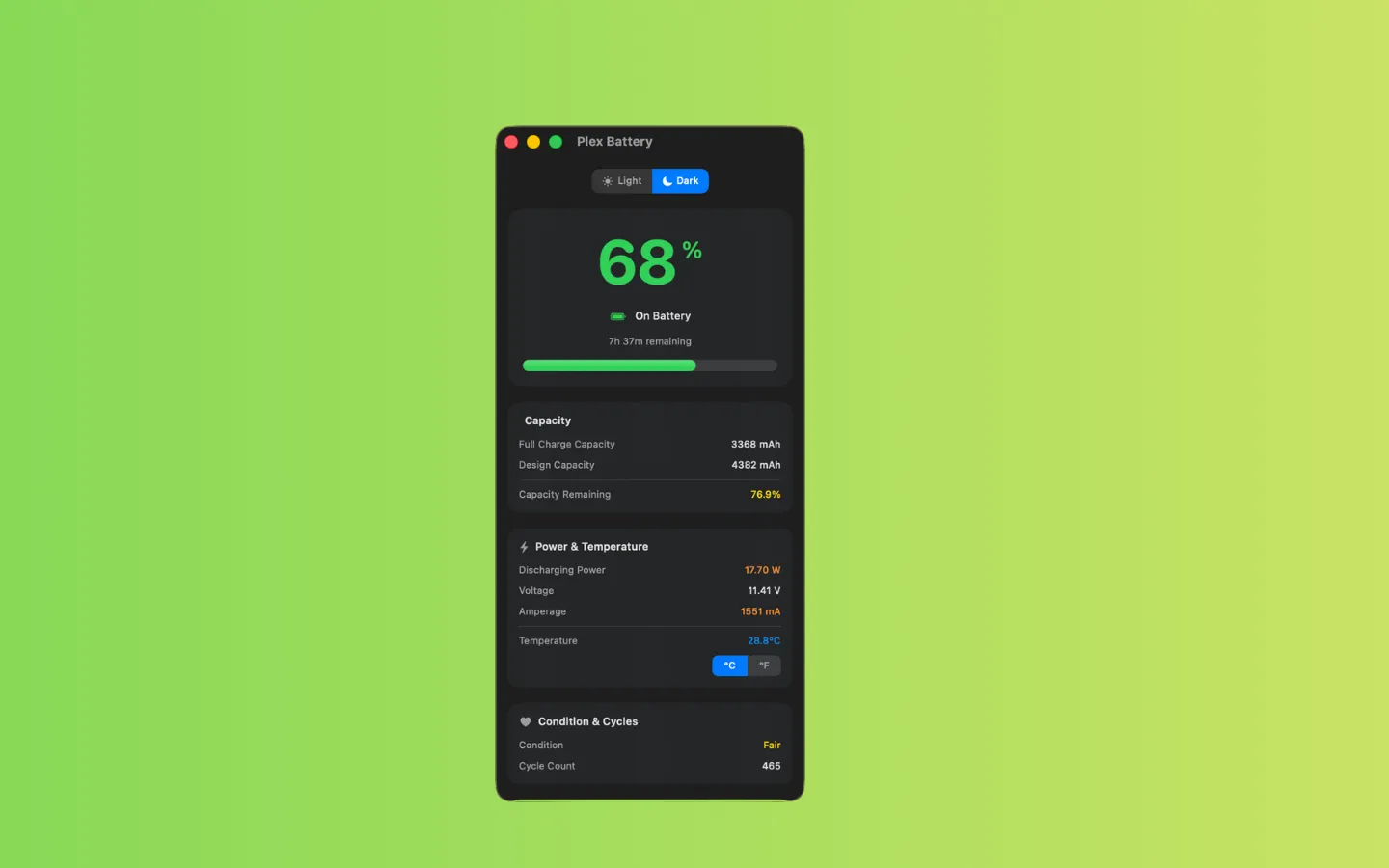
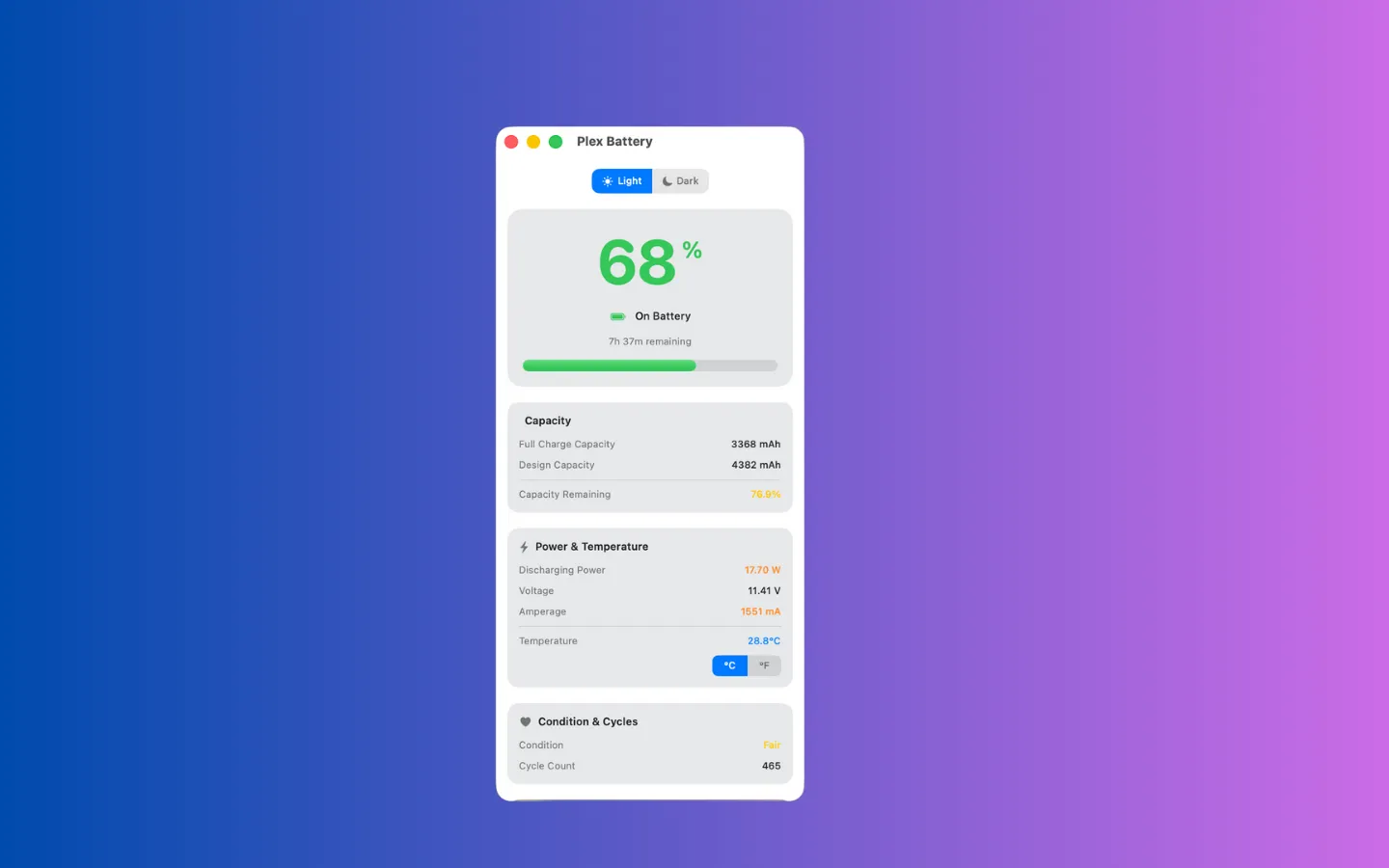
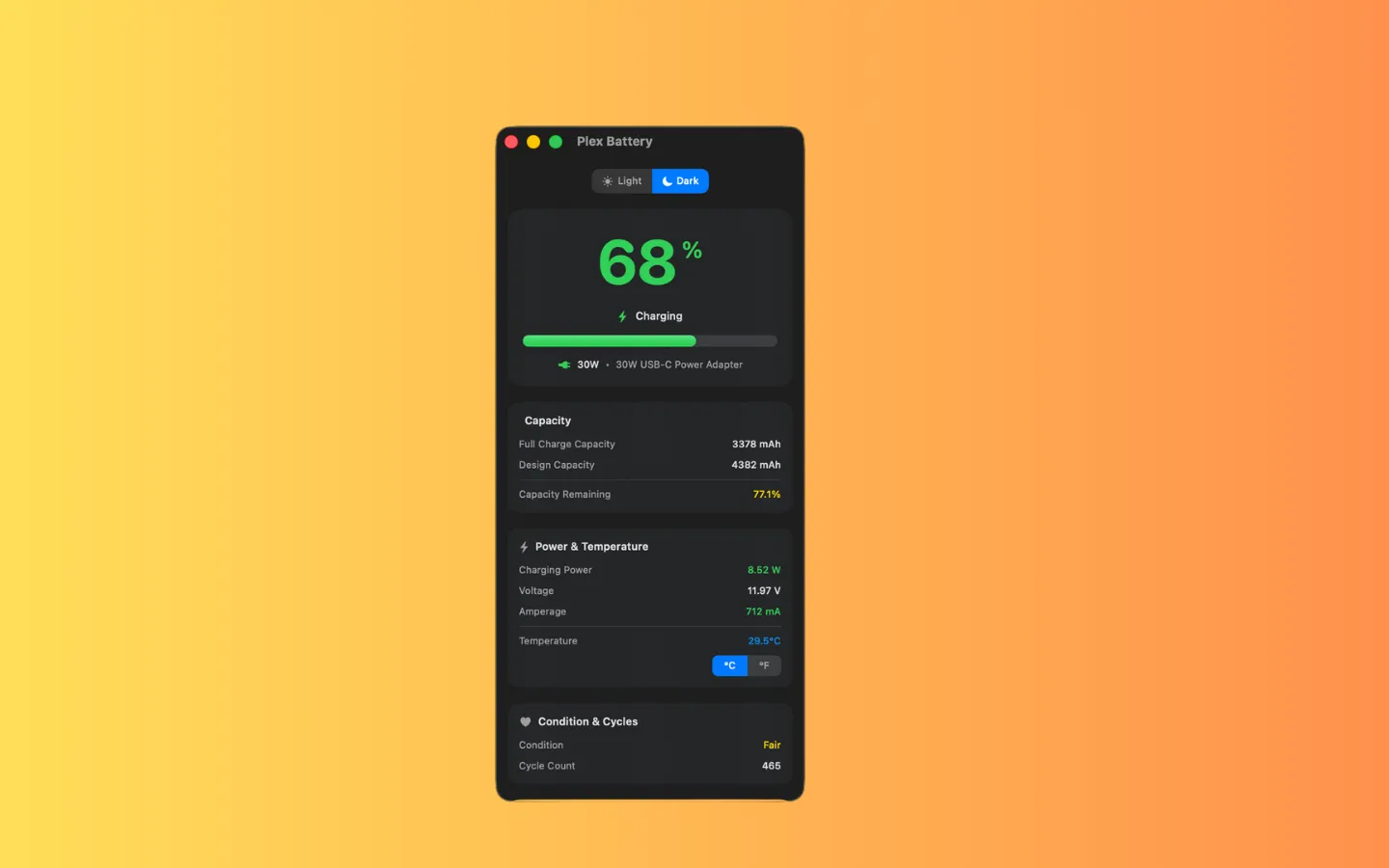
Plex Battery sits in your menu bar and gives you a straightforward read on your Mac's battery status, so you're not left guessing whether it's safe to unplug or how much runtime is left. It's built as a macOS battery monitor and nothing else — no dashboards to configure, no account to create. Click the icon, see where things stand, get back to work.
Sticky Notes That Sit on Your Desktop
Browser tabs and Notes-app entries are easy to lose. Sometimes you want a note pinned in view until you deal with it.
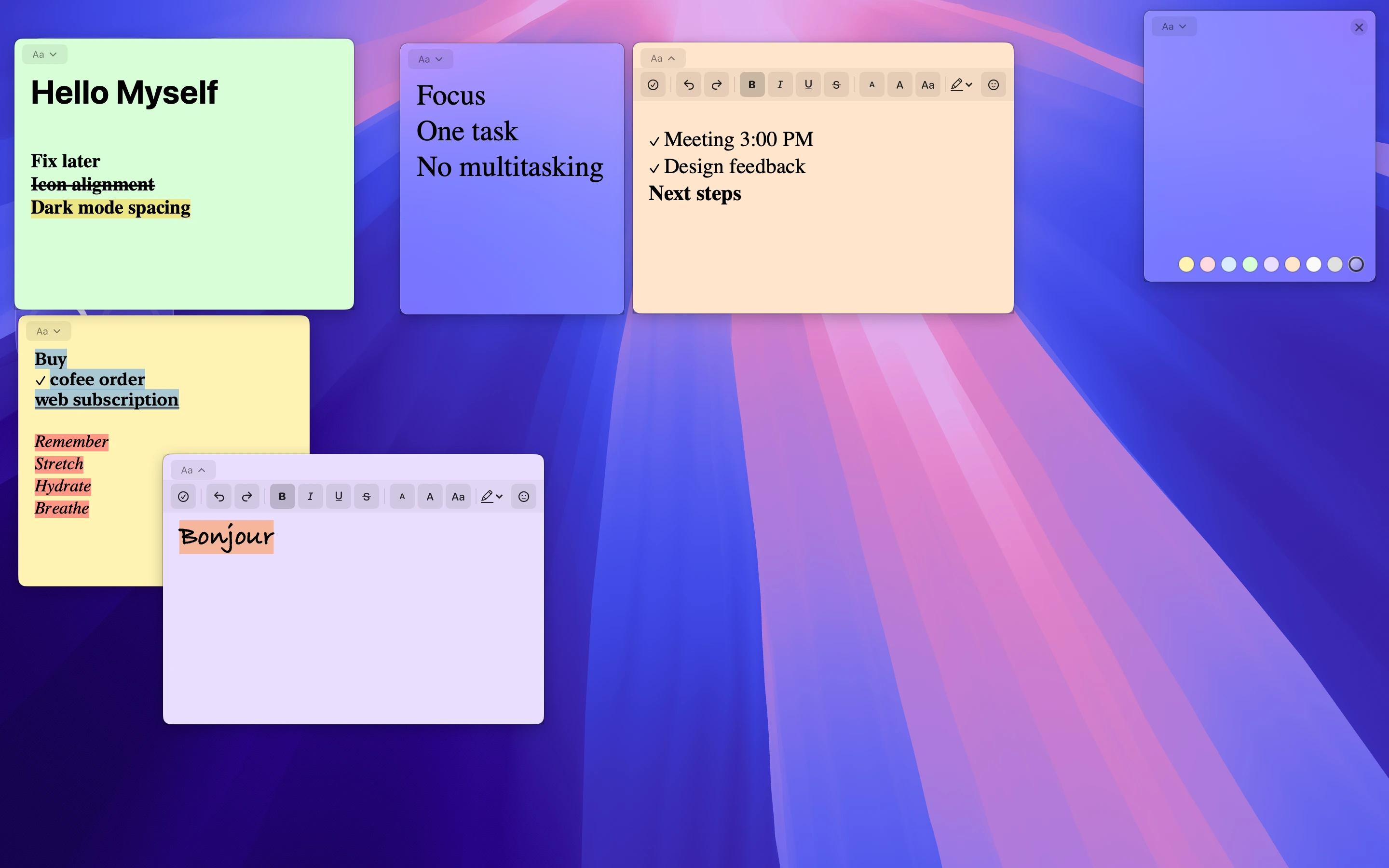
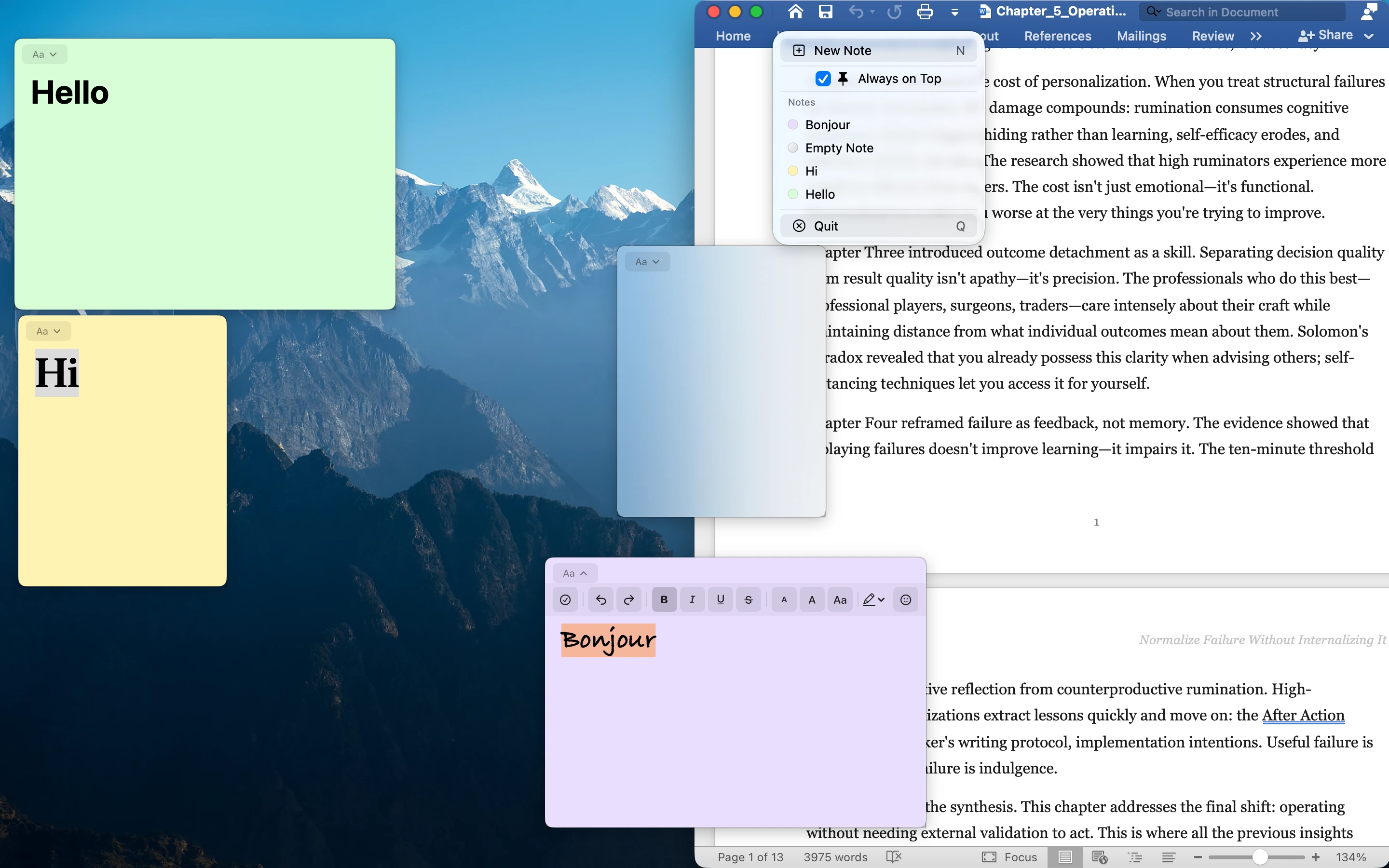
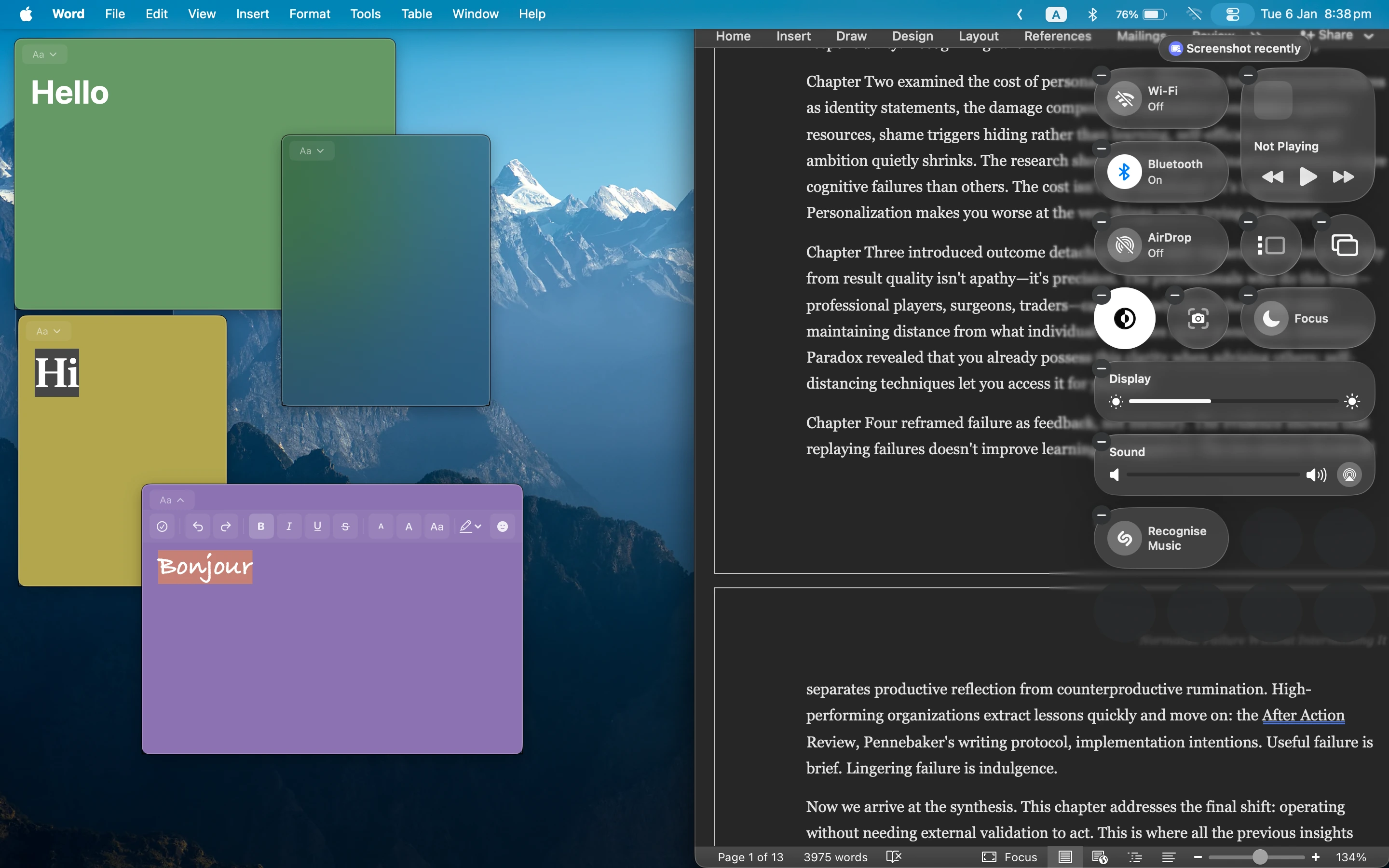
Nano Sticky does one thing: minimal desktop sticky notes for macOS. Instead of another window competing for space, notes sit directly on your desktop where you'll actually see them — a reminder for tomorrow, a shopping list, a line you don't want to lose. There's no folder structure to manage and no syncing to think about; it's built to be as quick as a Post-it, without the note falling behind the desk.
When Sticky Notes Aren't Enough, Colour-Code Instead
Longer notes need folders and a bit of structure, without turning into a bloated productivity suite.
Color Tag Notes is where longer, ongoing notes go once sticky notes stop being enough. It's a privacy-first macOS note-taking app with colour tagging, folders, pinning, basic rich-text formatting, and a clean read view, built natively in SwiftUI with no ads and no tracking. Colour-coded folders mean I can tell at a glance which notes are work, personal, or reference, without reading a single word.
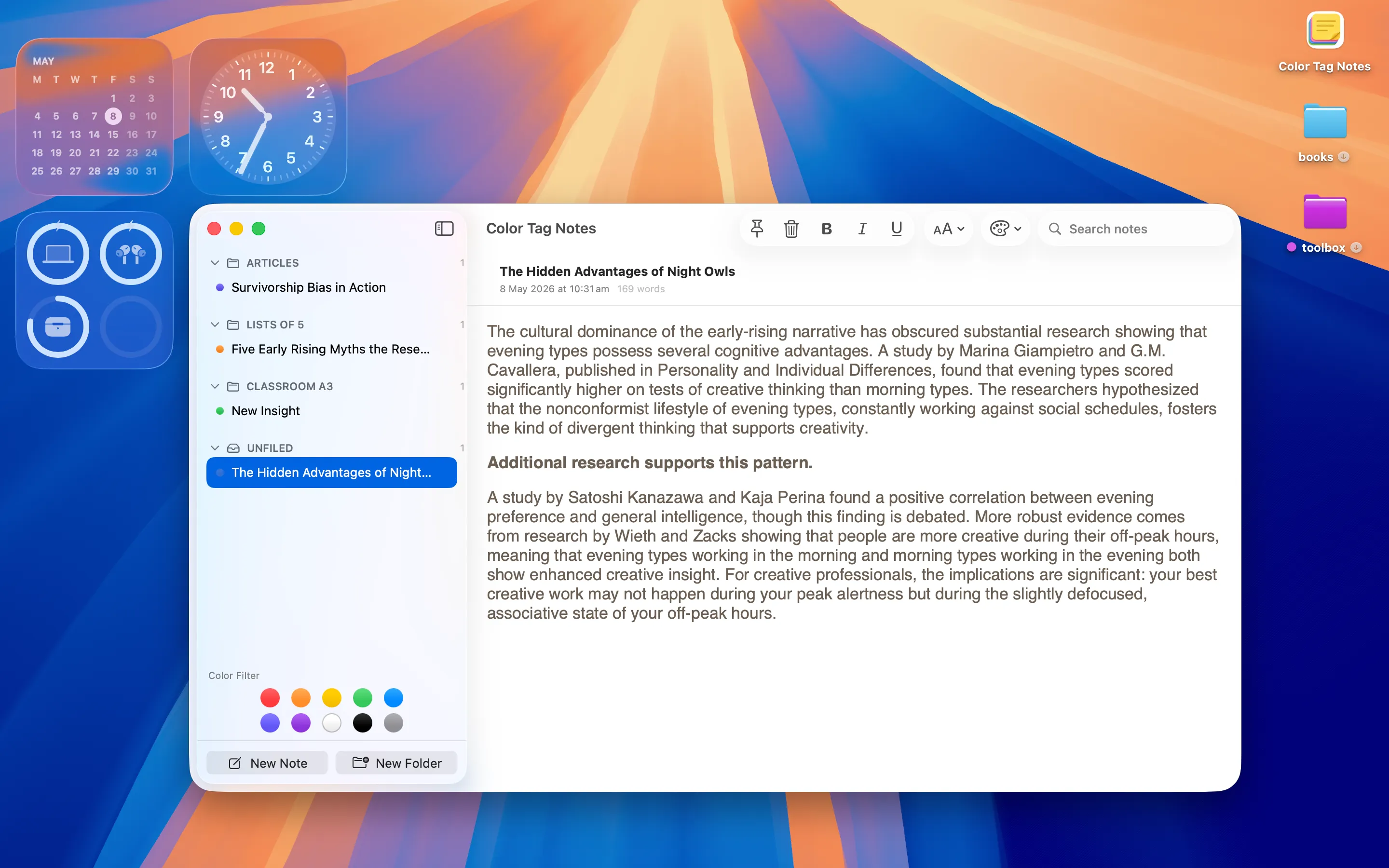
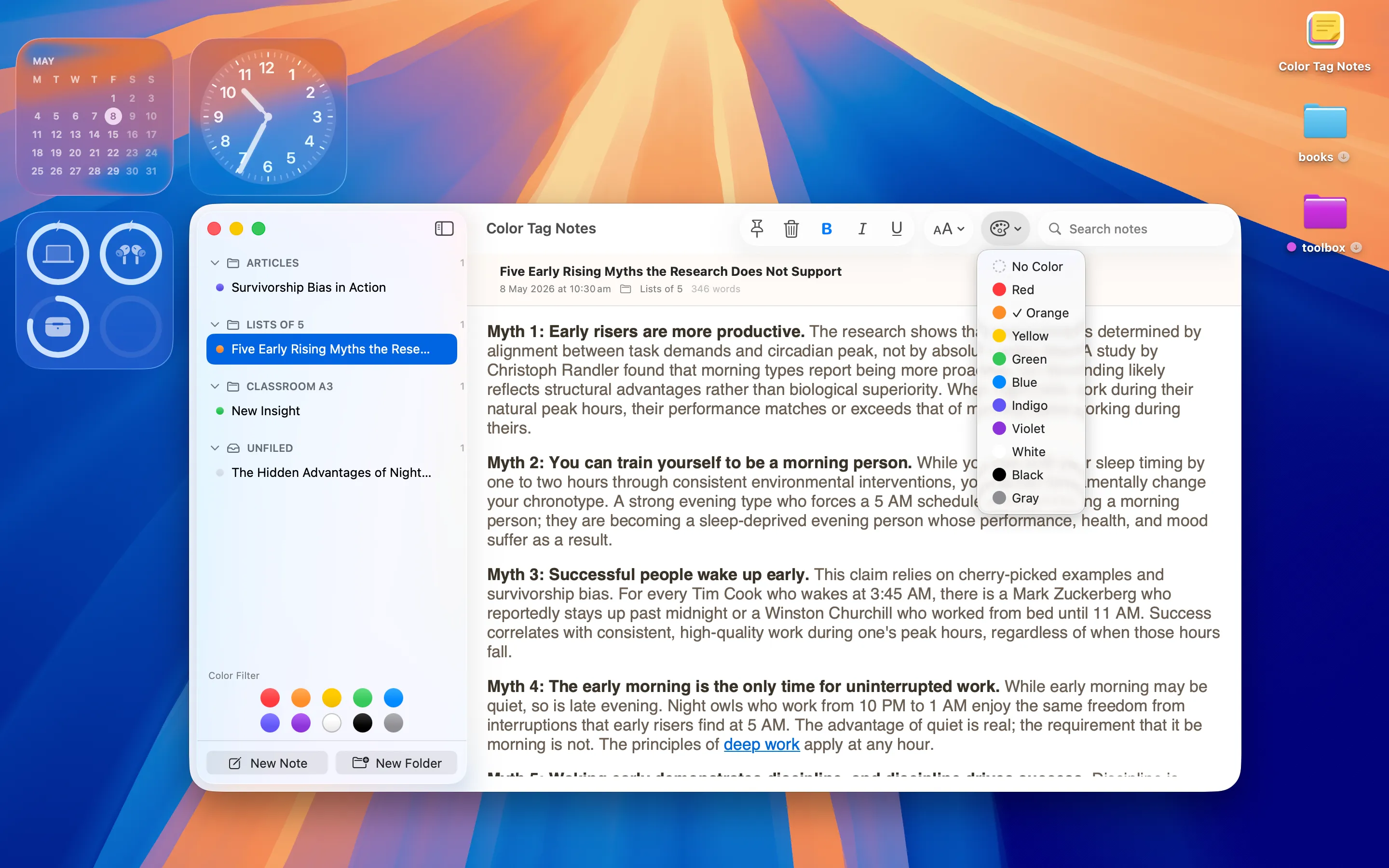
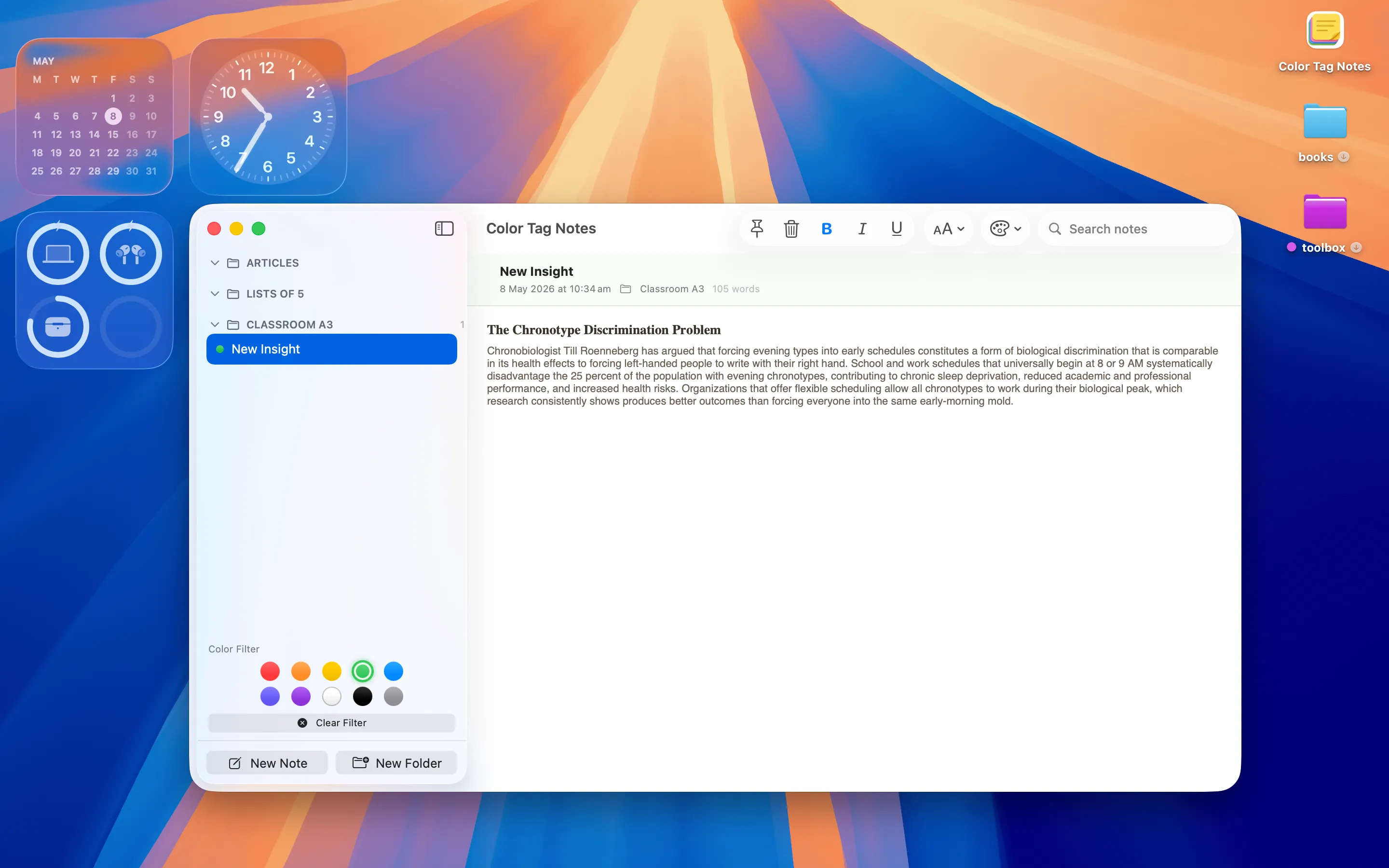
Full disclosure: I build these apps myself, which is why each one is scoped so narrowly — I use them daily and have no patience for bloat. A battery monitor, desktop sticky notes, and colour-coded notes cover a surprising amount of what a Mac menu bar actually needs.
Frequently asked questions
Is there a free way to check Mac battery health from the menu bar?
Plex Battery adds a menu bar view of your Mac's battery status so you don't have to dig through System Settings — check its Mac App Store listing for current pricing.
What's the difference between desktop sticky notes and a colour-coded notes app?
Nano Sticky is for quick, disposable reminders that sit on your desktop, while Color Tag Notes is for longer notes you want to organise into folders and find again by colour.